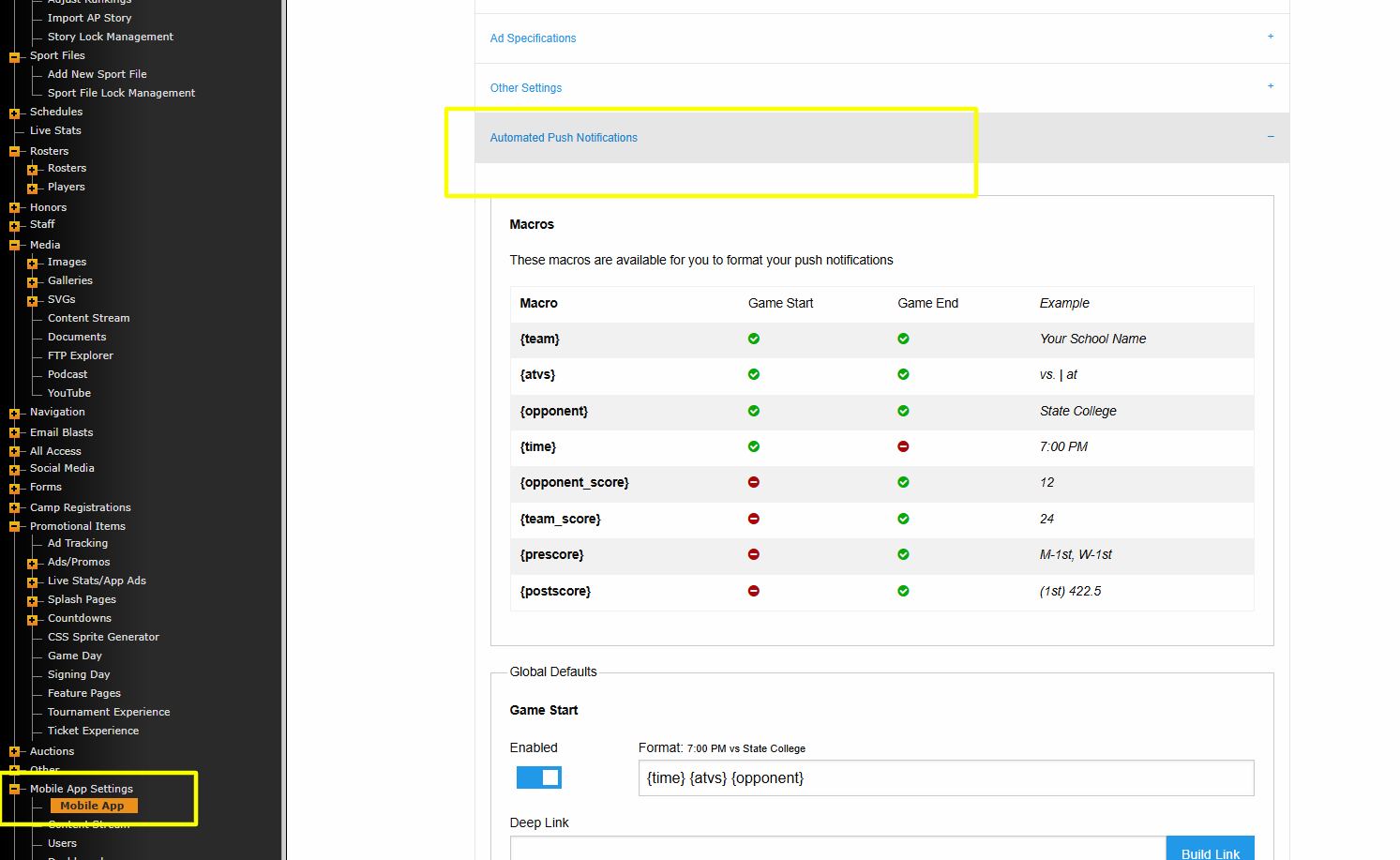
In order to manage Automated Push Notifications, navigate to Mobile App Settings>Mobile App>Automated Push Notifications.
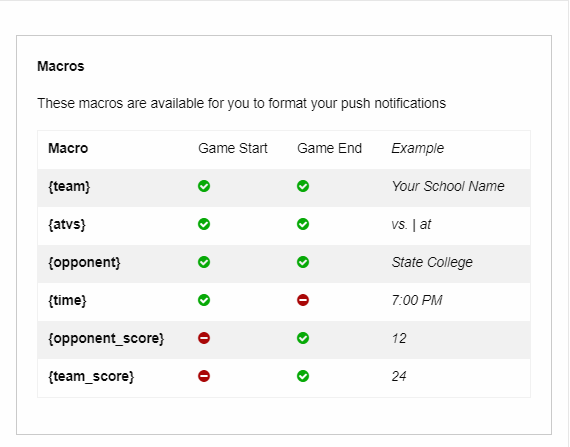
Macros
These macros are available for you to format your push notifications. The macro in the far-left column can be copy/pasted into the Global Defaults section in order to pull that information from the CMS. The green check/red negative lets you know if that the macro is available for the Game Start/Game End messages.
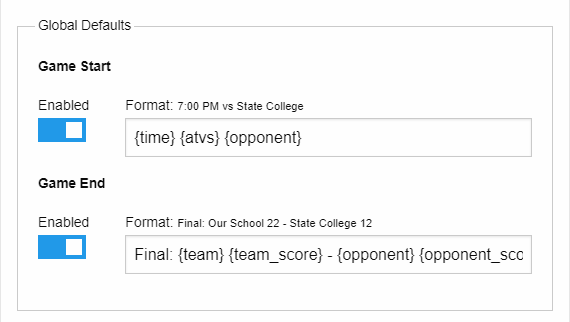
Global Defaults
This area allows you to customize and globally enable/disable the Game Start/Game End notifications.
The Game Start will automatically push 15 minutes prior to the start of the event. It is important to that you set the system time correctly for your events in order for this push notification to be accurate.
The Game End will automatically push when a result is entered to a schedule and saved.
By Sport
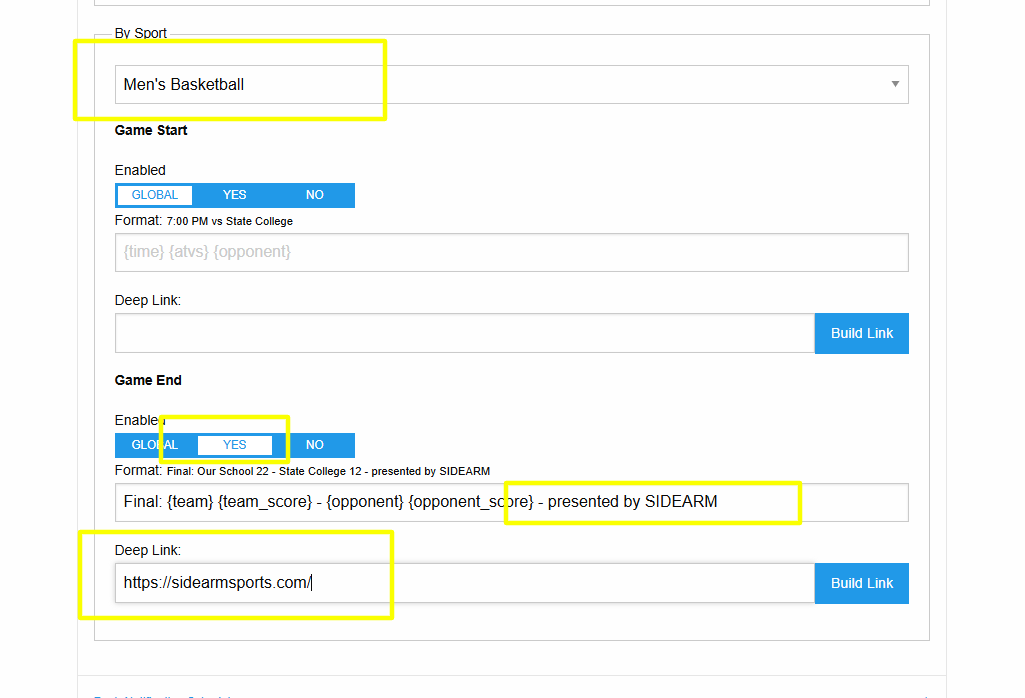
This area allows you to customize the Game Start/Game End notifications for each sport individually. By default, all sports use the Global notification, unless the override option is toggled on.
After selecting a sport from the dropdown, you can click the YES option to activate the custom notification for that sport.
To Customize the notification text, you can edit or enter additional text into the field and also utilize the Deep Link option to include a url, if it needs to link anywhere (ex: a sponsor or promotional url).
Was this article helpful?
That’s Great!
Thank you for your feedback
Sorry! We couldn't be helpful
Thank you for your feedback
Feedback sent
We appreciate your effort and will try to fix the article