SIDEARM Narrator Pages
SIDEARM Narrator-based stories will be prefixed with [NARRATOR] in the story list

Stories or sport files will be set to Narrator mode depending on the status of the “Story Text/Teaser” panel when editing the story. If Narrator content is added, but the panel is switched back to the normal text/teaser editors, the story will act as normal instead of displaying Narrator content.
Sport Files
SIDEARM Narrator for sport files is currently only available to sites that do not have a custom sport file template.
Permissions
Narrator is available to all Super Admins automatically. To give access to other users, new “SIDEARM Narrator Management – Stories” and “SIDEARM Narrator Management – Sportfiles” when editing administrators in the CMS.
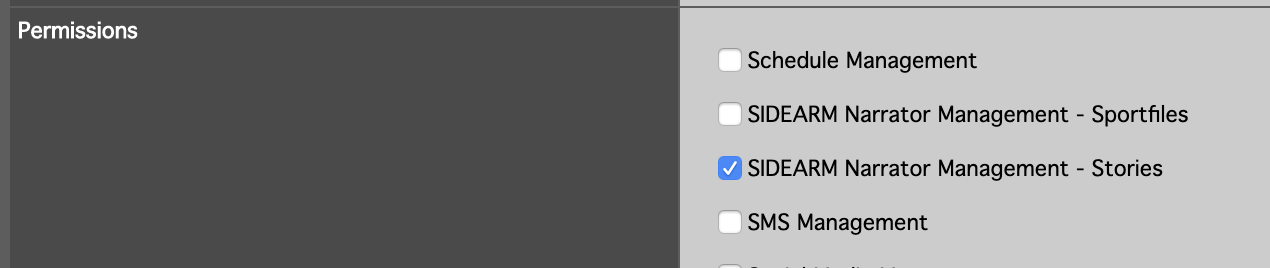
If a user is given story and/or sport file permissions but not respective Narrator permissions, they will still be able to edit all non-text information except the content of the story or sport file. For example, they can still change the headline, postdate, associations, or rankings of a story or sport file. However, when viewing the “Story Text/Teaser” panel, they will be entered into a read-only version of Narrator where they are unable to change any content in there.
UI Overview
Narrator stories are composed of one or more different sections, called “blocks”. There are no limits to how many blocks can be added to a story. Blocks can be reordered or deleted at any time.
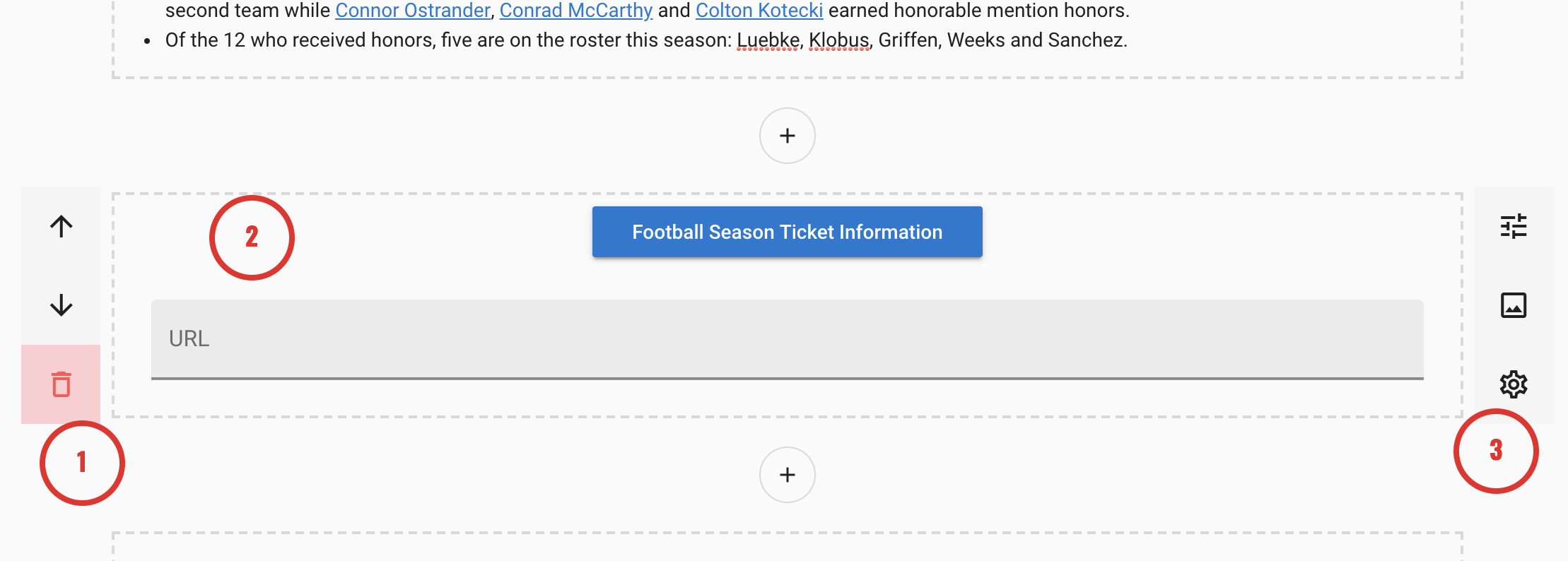
- Block Actions Panel – Move blocks up, down, or delete
- Block Content – Edit the content of the block that will show when viewing the story or sport file. In Narrator, this is a representation of the block and may look slightly different than how the real story will appear on the site.
- Block Settings Panel – Control different aspects about how blocks should display or behave
Adding new blocks
New blocks can be added with the Add Block  button. Blocks will be inserted at the position of the
  button clicked.
Blocks are grouped into Categories in the menu that appears when clicking the Add Block button.
- Structural Blocks: These blocks relate to the layout of a part of the page. These include options such as a Layout (or grid) block, a tab block, or an accordion block
- Basic Blocks: These blocks are the simplest form of content that can be added to a page such as text, images, galleries, and videos.
Block Settings
The Block Settings Panel contains several menus containing settings to control how blocks should display or behave on the front-end of the site. Menus contain options to change the width of blocks, amount of spacing around the content of blocks, change background colors and images, and more.
Blocks and Common Use Cases
Parallax Images
Parallax images can be created in two ways:
- If content needs to display on top of the parallax image, a background image can be set on the desired block and then the “Background Effect” set to “Parallax”
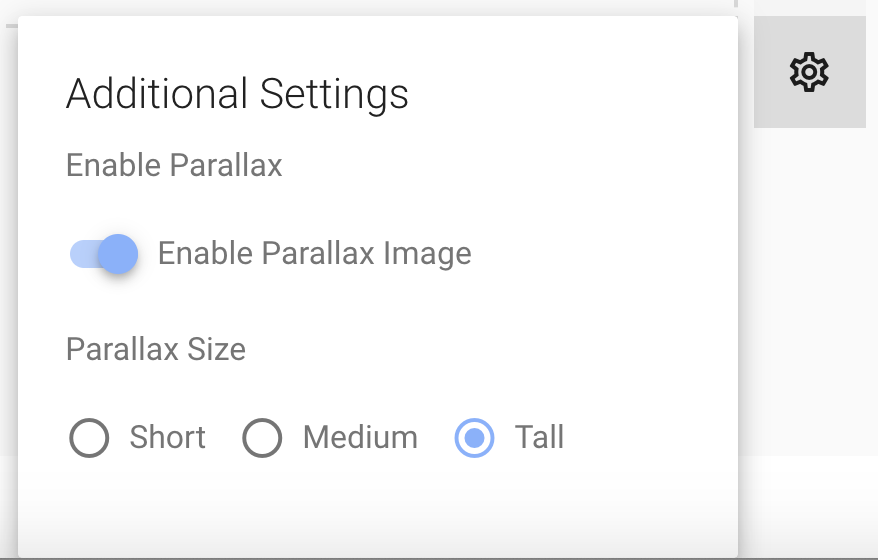
- If only an image is needed, an image block can be used. In the block settings menu, a “Parallax” toggle can be used. When an image block is set to parallax mode, the height of the image can be controlled with the “Parallax Size” setting
Side-By-Side Content
If at least two images, two text blocks, or a combination of both need to display next to each other horizontally, a Layout block (under the Structural category) can be used. A grid of blocks can be created ranging in size from a 2x1 layout to a 3x2 layout.
Not all pieces of a Layout block need to be filled in. Leaving a column empty can be used to create a section where an image or text block only takes up half the width of the section.
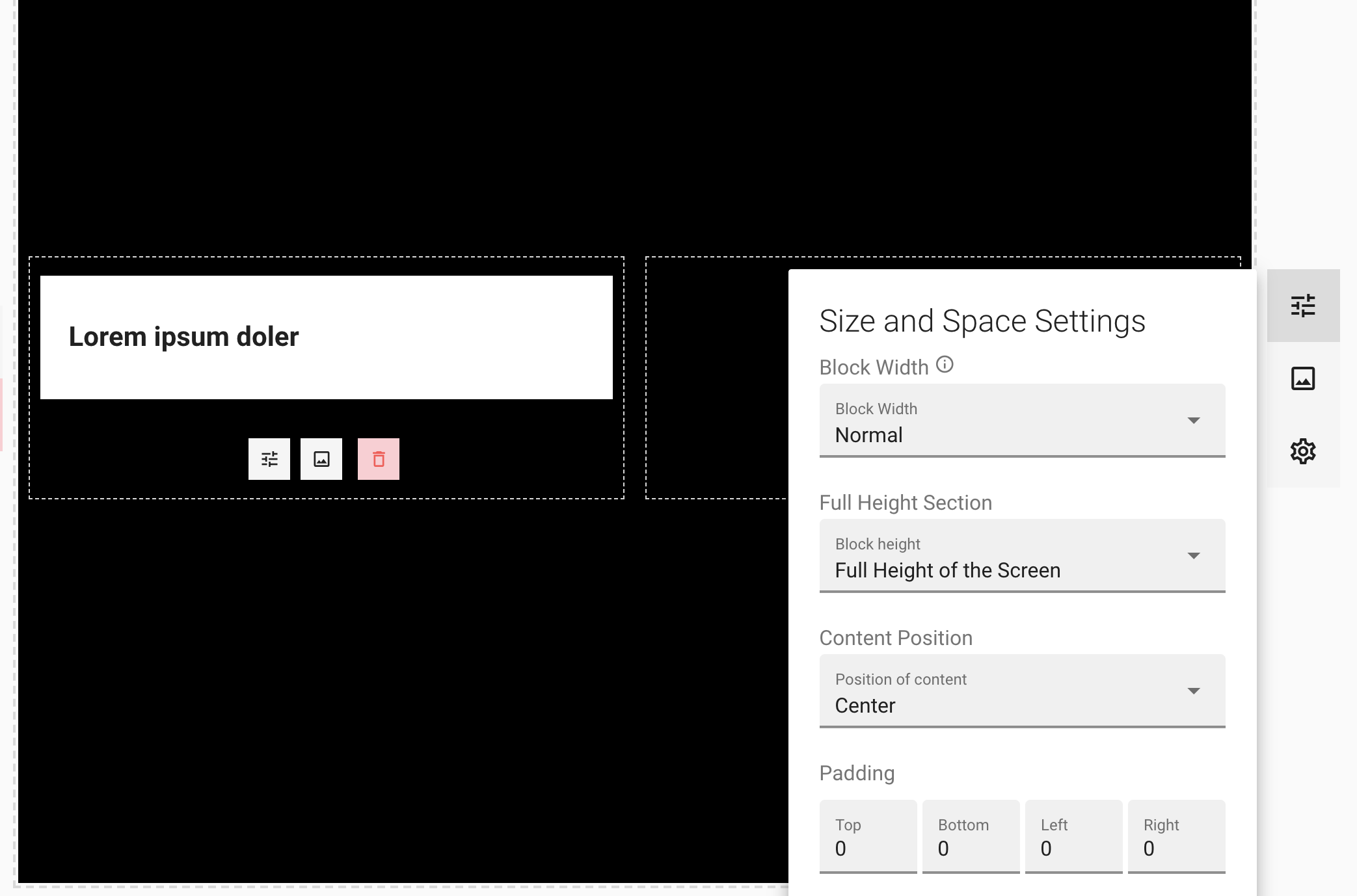
Full Height Sections
If a section features a large background image and that image should take up the full height of the screen, the “Block Height” setting can be utilized in place of large amounts of top and bottom padding. When a block is set to “Full Height of the Screen”, content be then be aligned within the block with the “Content Position”. This combination of settings is useful to center text on top of a large background image that should fill screens.
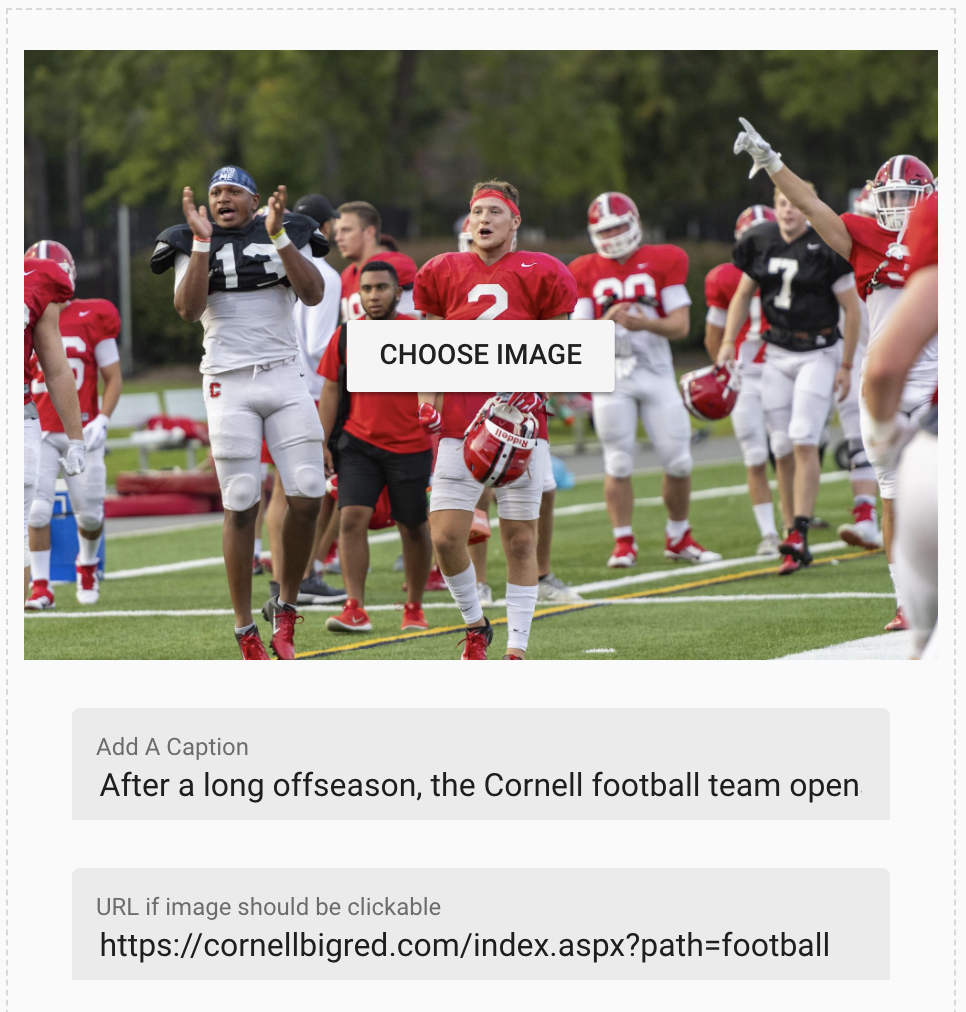
Clickable Images or Links
Images or links can be made clickable with the Image or Button block by filling out the “URL” field inside the Block Content area.
Featured Story Template
A new story template is available for Narrator stories to feature content in a focused and slim-down view. Stories using a featured template will be denoted with [FEATURED] in the story search list.

Stories that use a “Featured” template will use a special layout for the site, featuring a minimal header and footer.
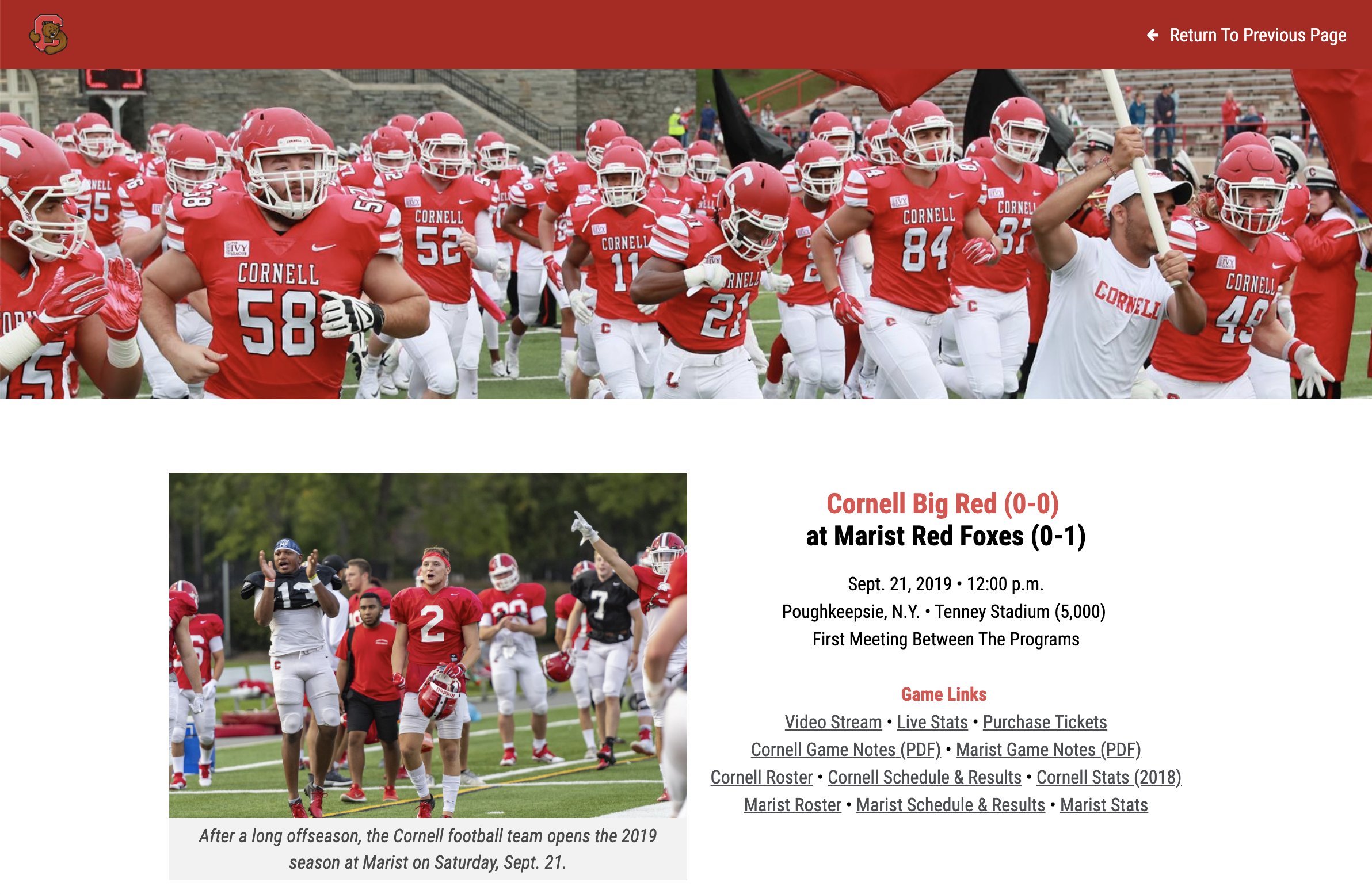
Certain block settings are designed specifically for Featured story templates.
- The “Block Width” setting allows blocks to be displayed at various sizes or take up the full width of the page.
- The “Background Width” setting for background images can be set to “Extend Full Width” to keep block content-centered and contained on the page but have the background image take up the full width of the page behind it.
Saving Narrator Content
Narrator content is saved during the normal story save process. If changes are made in the Narrator editor, they will not be saved until either the “Save Story and Exit” button or “Save Story and Continue Editing” buttons are clicked. These buttons can be clicked on any panel when editing a story or sport file, and not just the “Story Text/Teaser” panel.

Was this article helpful?
That’s Great!
Thank you for your feedback
Sorry! We couldn't be helpful
Thank you for your feedback
Feedback sent
We appreciate your effort and will try to fix the article