TABLE OF CONTENTS
- In-Arena Utility (IAU) setup
- Sending directly to SIDEARM from Genius IAU
- Saving the XML locally so that you can push out with the SIDEARM File Distributor
- Using SIDEARM File Distributor to send XML to SIDEARM live stats server
- Things to remember
See below for instructions on how to push XML Live Stats to our live stats server from Genius Sports & SIDEARM File Distributor.
Download the SIDEARM File Distributor: Click here to download the installer file.
If you need further assistance on the File Distributor set-up, check on the article from our solution center: https://support.sidearmsports.com/support/solutions/articles/4000012336-sidearm-file-distributor-setup
In-Arena Utility (IAU) setup
Set up - Watch demonstration video here.
IAU and NCAA LiveStats work together to provide the XML/serial data stream. So, before the game begins, you need to ensure a number of things are set up appropriately.
Step 1
Make sure that NCAA LiveStats and IAU are either:
a. Running on the same network (wired or wireless); or
b. Running on the same physical machine
Step 2
In the main entry screen of NCAA LiveStats, click on SETTINGS > In-Venue Feed

This will bring up the LIVESTATS SETTINGS box, and here you need to:
a. Make note of the server port (7677 in this example); and
b. Click on the START TV FEED button, which will start the export process of the game data

Closeout this dialog box, and when you get back to the main screen, you will see that the TV FEED icon has turned green.

Step 3
Now go over to the IAU application. You will need to do a couple of things here.

a. You need to enter something in the IP ADDRESS box:
-- If NCAA LiveStats and IAU are on the same machine, enter “localhost” (without the quote marks)
-- If they are NOT on the same machine, enter the IP address of the machine running NCAA LiveStats. You might need to get this information from your IT Department.
b. In the PORT box, enter the number from the Server Port box in NCAA LiveStats (7677 in this example)
c. Hit the Start button
d. Click on the CONNECTIONS box
This will open up the Output Destination Management box:

Click on NEW, and you can set up a new connection.
Sending directly to SIDEARM from Genius IAU
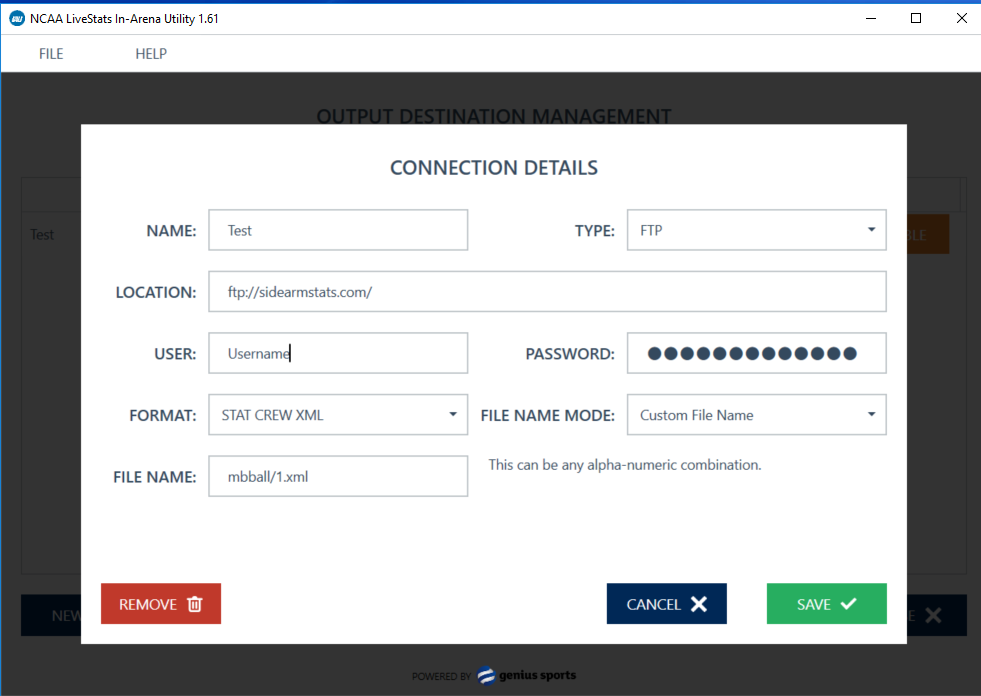
If you would like to send the xml file to our FTP, directly from the Genius IAU, then you will want to make sure to select "FTP" in the Type dropdown at the top-right.
When selecting that option, you can add all of your live stats credentials and send the XML files directly to SIDEARM without utilizing the SIDEARM File Distributor.
The Location should always be: sidearmstats.com
You will want to set the File Name Mode to Custom File Name
Then for the File Name be sure to include the Directory that you want to send to, followed by a slash(/) and the file name that you want to use: example, Men's Basketball would be: mbball/1.xml
If you are unsure of your Live Stats Username and Password, feel free to reach out to support@sidearmsports.com.
Saving the XML locally so that you can push out with the SIDEARM File Distributor
Folder -- use this option when you want to create a file in a local directory
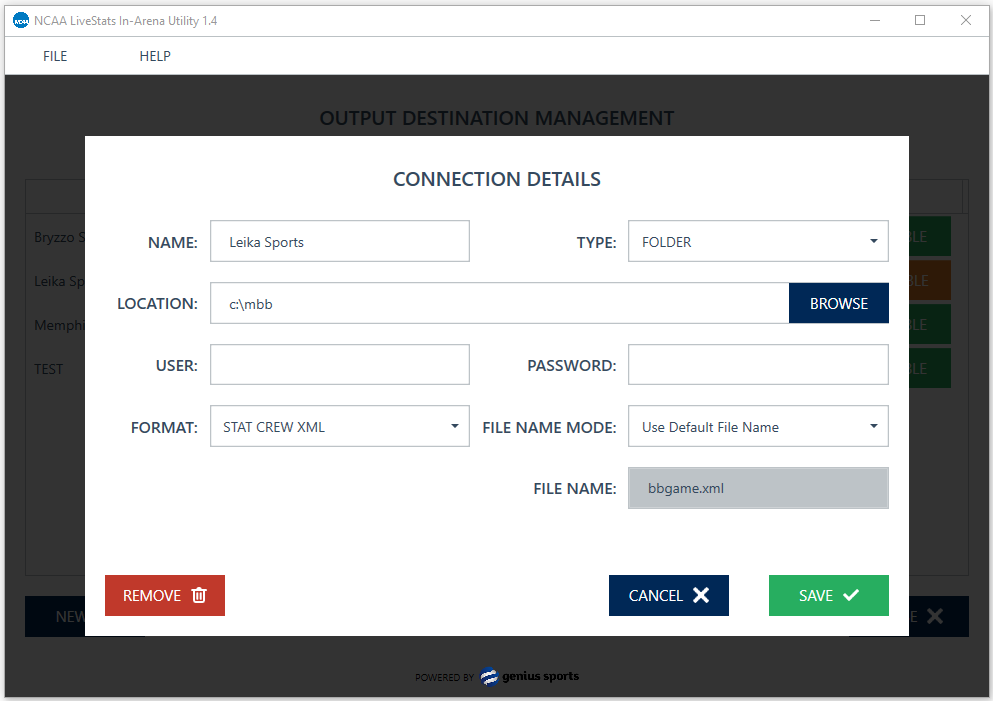
NAME: Name of the connection (just used for identification)
TYPE: Choose FOLDER
LOCATION: Location on the local machine
USER: Username if you need it (you probably won’t, though)
PASSWORD: Password if you need it (you probably won’t, though)
FILENAME MODE: There are five different options here...
- Use Default File Name - this will make the file name "bbgame.xml"
- Use Game Number - this will make the file name whatever you have set up in NCAA LiveStats--> Game--> Game Information--> Game Number field
- Use NCAA Game ID - this will make the file name the NCAA Game ID, which you can find in NCAA LiveStats--> Help--> Game Information --> Conference Game ID (note: this won't work for practice games)
- Use NCAA Match ID (Genius Sports) - this should only be used in the rare instance when NCAA Game ID is not present
- Custom Filename - this can be any alpha-numeric file name you want. Make sure to put ".xml" at the end of the name.
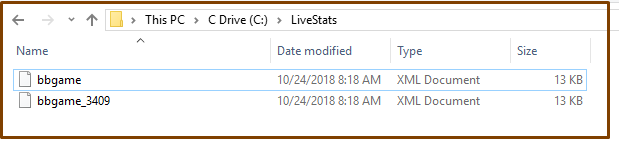
…and this will put an updated version of the XML file (whatever it is named) in that directory.
Using SIDEARM File Distributor to send XML to SIDEARM live stats server
Now that the XML file is being saved onto your computer, you'll send that to SIDEARM using the SIDEARM File Distributor.
For information on that setup CLICK HERE.
Things to remember
Remember to update the XML Filename on your live stats control page, depending on the name of the XML file being saved locally.
Was this article helpful?
That’s Great!
Thank you for your feedback
Sorry! We couldn't be helpful
Thank you for your feedback
Feedback sent
We appreciate your effort and will try to fix the article