The first step of adding a new award is to fill out it’s specific details. 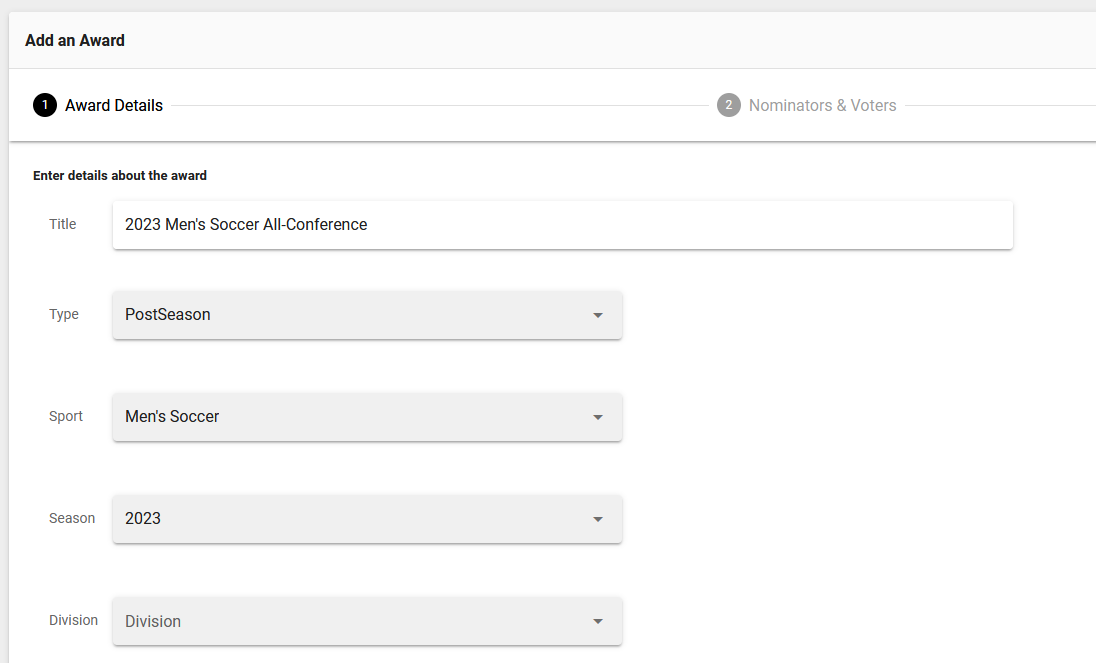
Title: This is the title of the ballot (award) and how it will appear both in the admin and to a voter.
Type: There are three award types which will display stats differently and can be used for filtering:
Preseason/Postseason - These will display overall and conference stat totals.
Weekly - This will display overall totals and a list of each game that took place during the dates selected in step 3.
Sport: The sport chosen will determine where to pull stats and player names from.
Season: The season chosen will determine what year to pull stats and player names from.
Division: If your conference uses divisions, this can be used to display on the ballot.
-----
The second step of adding a new award involves choosing who will have the ability to nominate and vote.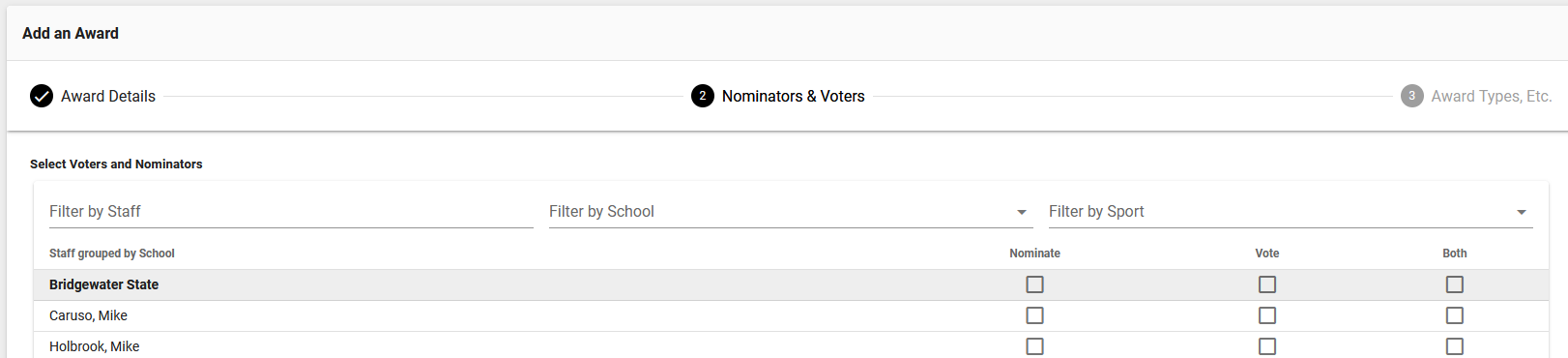
In the example above, all active voter accounts will display grouped by school, but you will have the ability to utilize the filter to adjust that down further.
To the right of each voter are check boxes to grant them nomination access, voting access or both.
If a voter only has nomination access, then when the award goes into open voting, they will not see it as an option when logged into their account. Same goes for voting, just the opposite where they will not see the award when it is in the nominations phase.
Clicking both will auto-select both options.
Note: Switching between different filters will retain the choices you’ve made for each voter, so do not hesitate when using them.
-----
The final step is where the you will build out the full ballot by choosing award types, adding stat groups, selecting the number of nominations/votes per award and other additional settings. Each of these will be broken down on this page.
Award Types
The award types are how you define which specific awards will be conducting in this ballot. These could be a single award for player of the week or a full set of positions/award for all-conference.
To begin, click on Award Types and then choose the ones you want from the list that displays by checking the box to the left of the award type.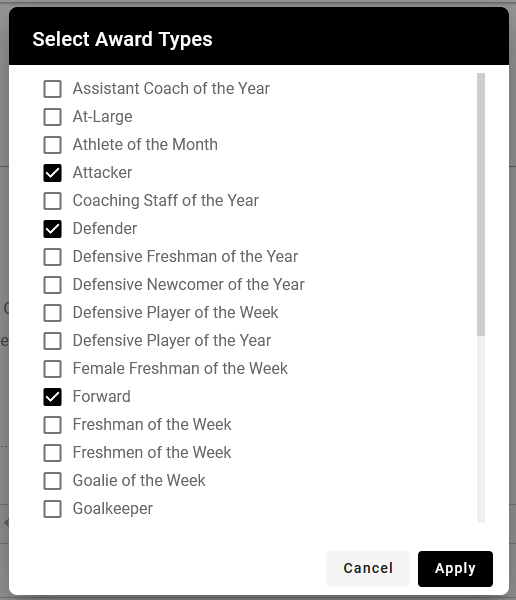
After hitting apply, you will see all of the awards and the area you need to fill out next.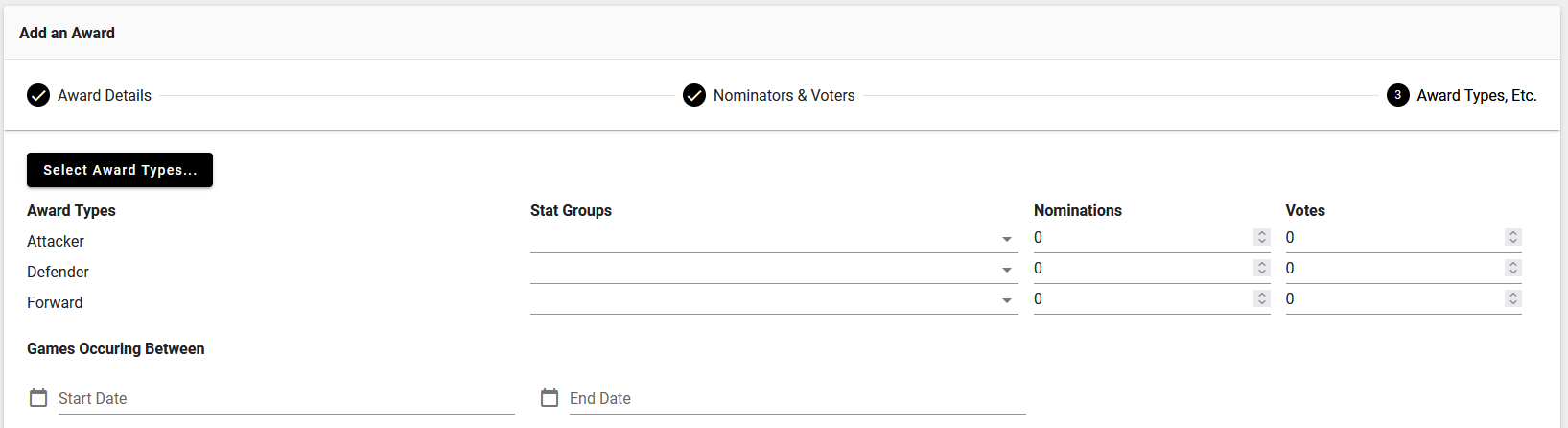
Stat Groups
Click on the area to choose which stat groups you will like to have displayed for each award. This could be as simple as clicking each one or can be selective depending on the position/award.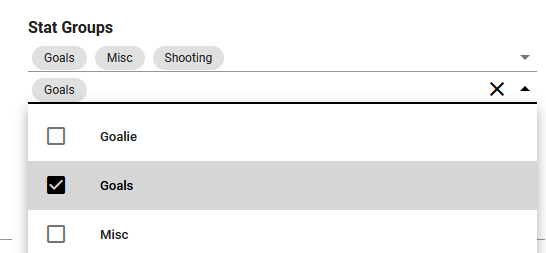
Nominations/Votes
Next you will need to choose how many nominations can be made per award type and also how many will be voted on. So for example, if you want each school to nominate up to four attackers, you will enter 4 into that field. However, if they are to vote on 8, you will then enter 8 into the next field as seen below:
Games Occurring Between
The final step in the first part of your setup is to choose the start and end date for which stats you would like to appear in the ballot. If this were a weekly award, you would typically choose the Monday through Sunday of the upcoming week. For this example, an all-conference award would be the first and last game of the regular season.
When you click on the field, a calendar picker will display, navigate to the proper date and be sure to click ‘ok’ to set it.
Options
There are a few customization option that can be applied to individual ballots.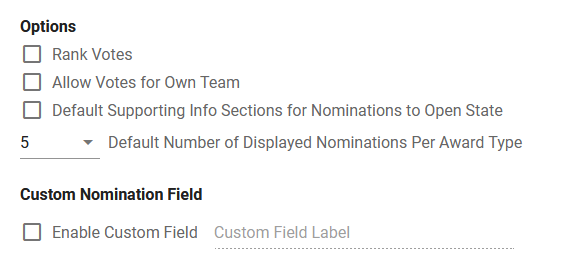
Rank Votes: This option will allow the voter to drag/drop their votes to rank the individuals which will also then apply a point based on how many have been voted on. So if there are eight votes, the first choice would get 8 points, second 7 points and so on from there.
Allow Votes for Own Team: Although rare, this option will allow a voter account to vote for a player from their own school/team.
Default Support Info Section to Open: The supporting info, which houses nomination info along with any text supplied about the individual, is displayed inside an accordion. By default this is closed, but checking this box will flip it to being displayed.
The only impact is having it open will make the ballot a longer requiring more to scroll through.
Default Number of Nominations: The ballot displays 5 nomination by default, with the ability to page through the rest. Here, you can choose to display 5, 10, 15 or all nominations at once and just will impact how many a coach needs to scroll through vertically vs clicking to each next page.
Custom Field: If you wish to add a custom field to nomination form, click the box and type in the title of the field.
Text Areas
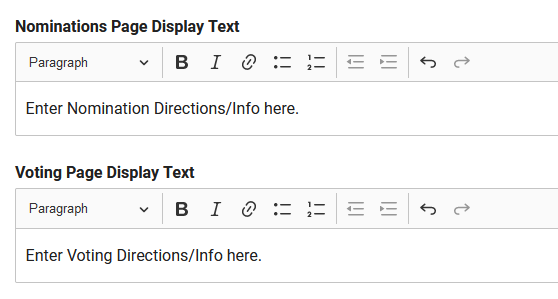
The nomination form and award ballot have an area at the top where you can display content, whether it be directions or other important info. These can be placed into the two text boxes see below.
Was this article helpful?
That’s Great!
Thank you for your feedback
Sorry! We couldn't be helpful
Thank you for your feedback
Feedback sent
We appreciate your effort and will try to fix the article