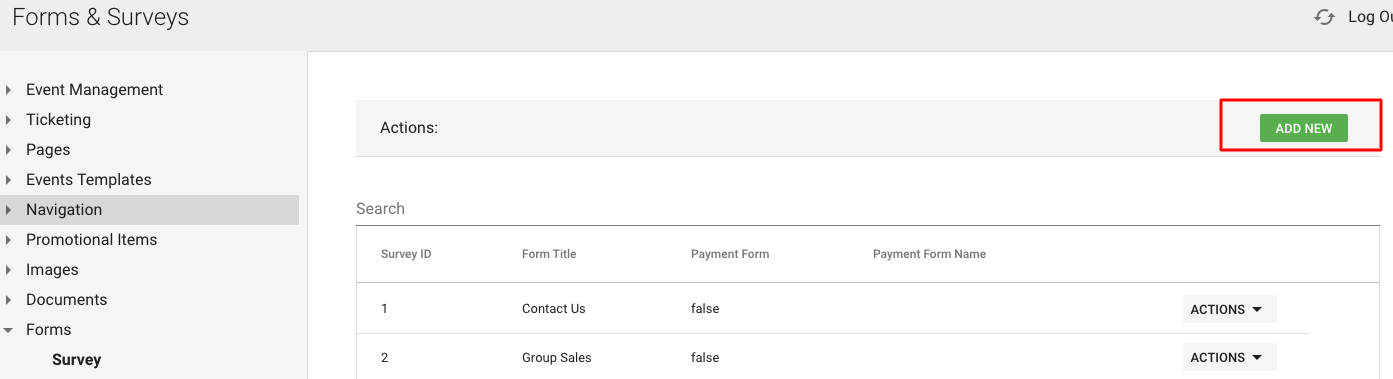
To add a Form, click Form > Survey > Add New
#1 Details
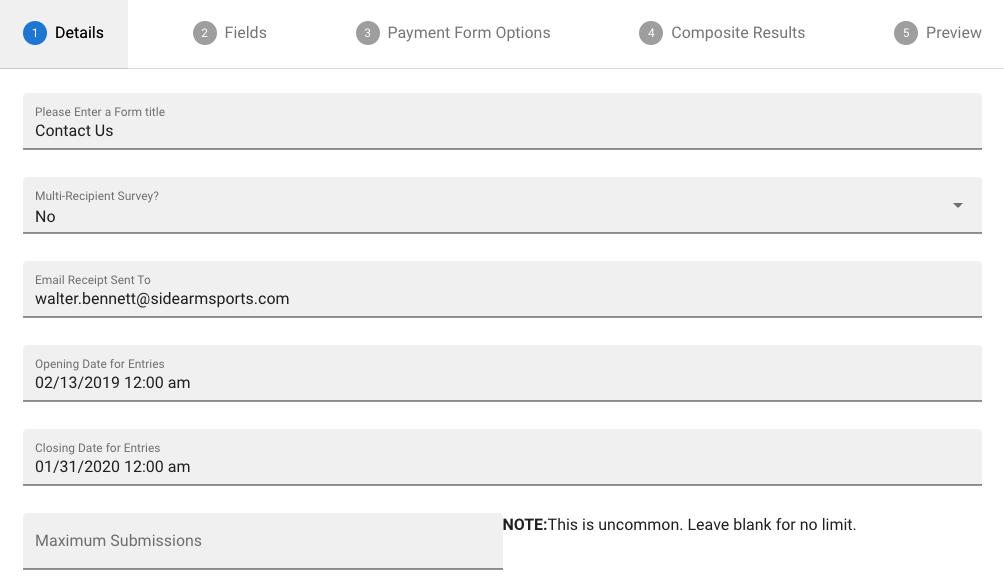
- Enter a form title
- If the form submissions should go to multiple recipients, check yes
- Fill out an email address for form submissions
- If specific opening & closing dates or maximum amount are needed for submissions, set those
- Manually edit form description (what users will see before answering questions)
- Fill out various other sections (default email response to user, closed form, reached limit) if applicable
#2 Fields
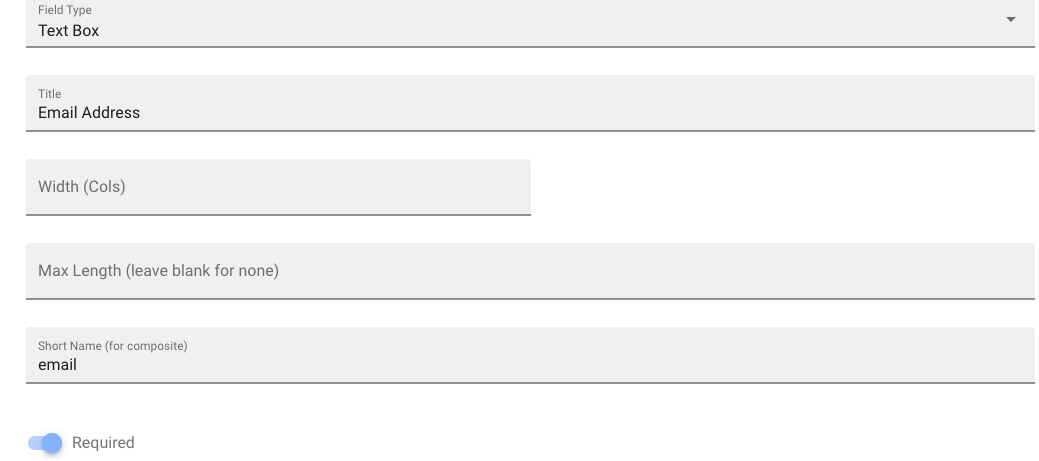
Fields are the questions users will fill out in your form and you have several options of the type you can use:
Text Box (most common, Select Box (dropdown, Check Boxes, Radio Buttons, etc.
#3 Payment Form Options
Partners can make their forms accept payments, if you choose to enable that you'll have additional options.
#4 Composite Results
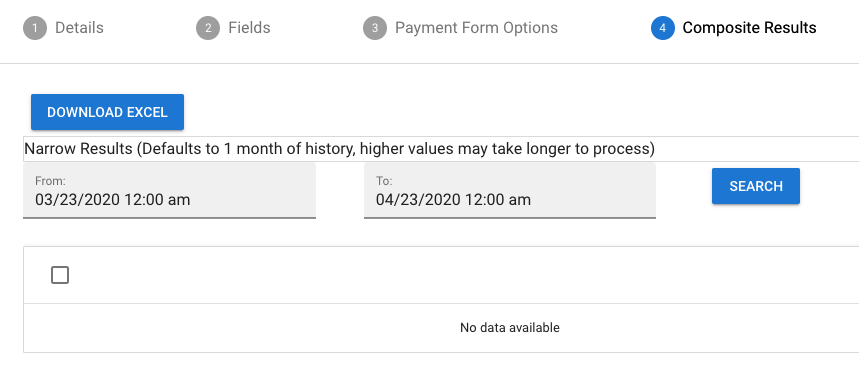
In addition to having form submissions send to specific emails, you can also view all the results directly in the back-end:
#5 Preview
Click preview to look at how the form looks on the front-end before making it live!
Was this article helpful?
That’s Great!
Thank you for your feedback
Sorry! We couldn't be helpful
Thank you for your feedback
Feedback sent
We appreciate your effort and will try to fix the article