Table of Contents
Paciolan Ticketing Integration: SIDEARM Content Management System (CMS) Setup Guide
This guide walks you through configuring the Paciolan ticketing integration from the SIDEARM CMS.
1. Navigate to Ticketing
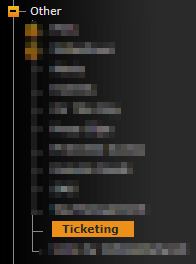
In SIDEARM Admin, navigate to Other > Ticketing.
2. Complete Your Season Code Configuration
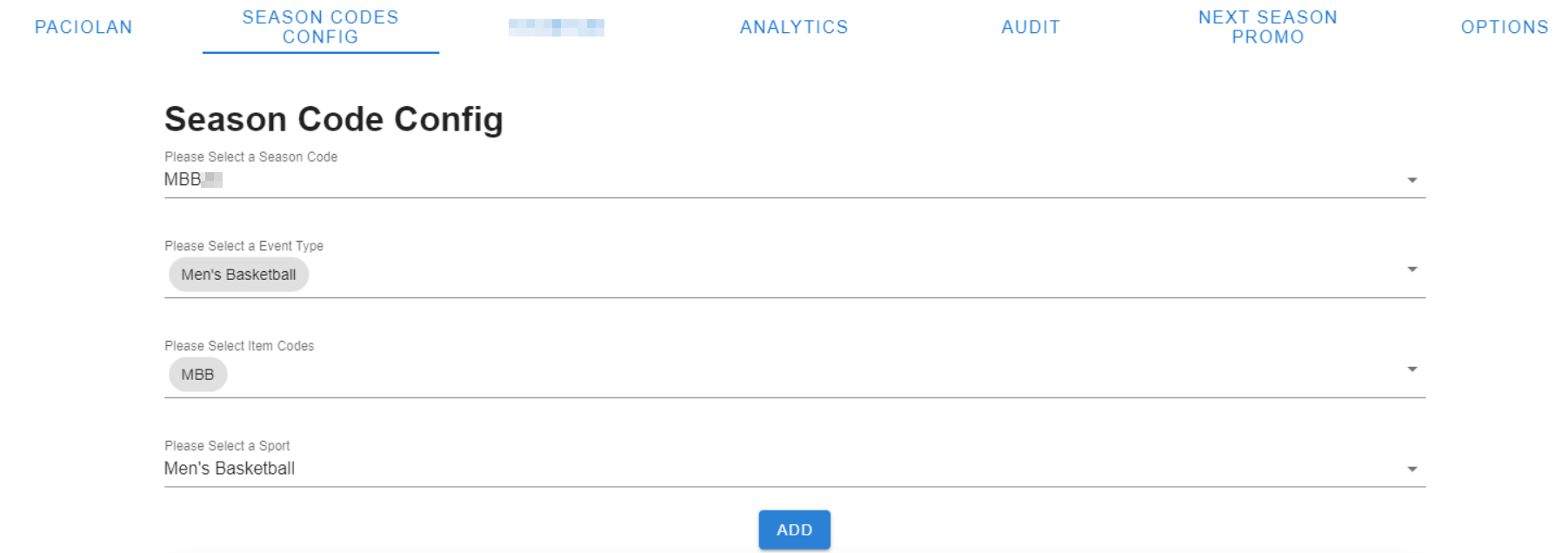
Complete your Season Code Configuration under the Season Code Config tab on the Ticketing Display Options screen.
On this screen, you will associate the Paciolan Season Codes with SIDEARM Sports. Once the season code & sport is selected, you click Add and this associates the two systems together.
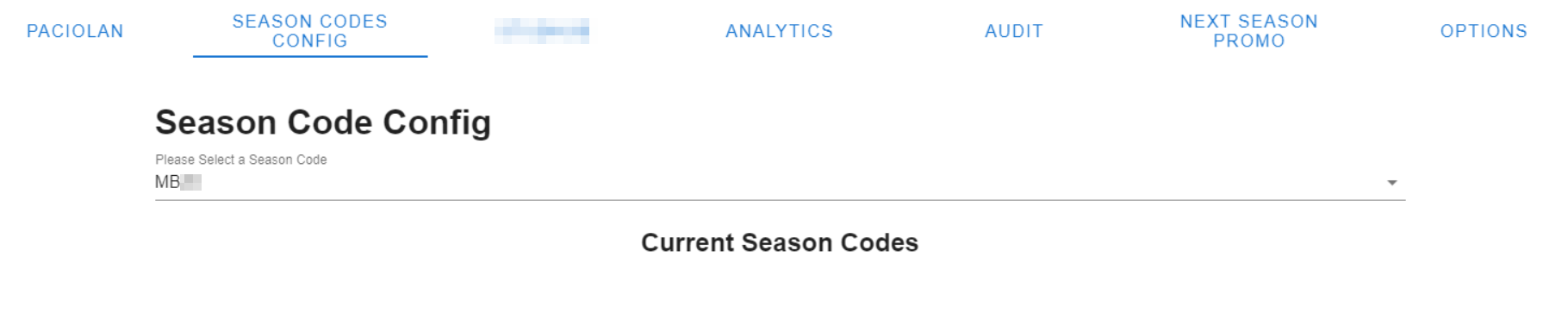
After you click Add, the Sport and Season Code will populate and display on the list under Current Season Codes. You are able to add multiple different Season Codes and Sports. You are also able to remove these settings.
3. Modify Display Options in the Paciolan Section
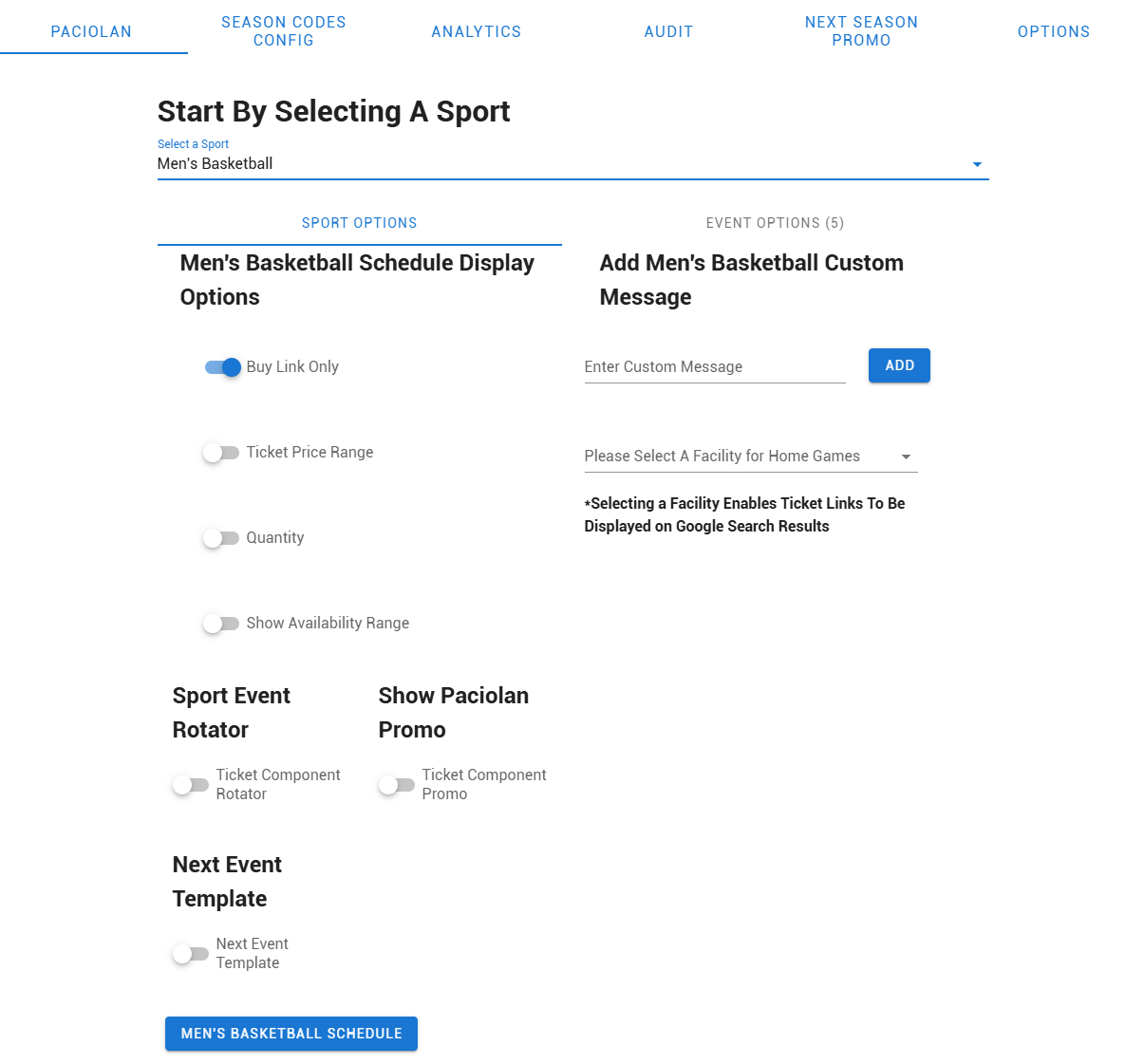
Once you have associated the Season Code with a sport, you can navigate to the PACIOLAN section where you can choose a Sport and modify the display options under Sport Options. This includes adding custom messages globally for each event and modifying the default custom range options associated with the selected sport.
NOTE: The custom range options are only used when the user selects Show Availability Range. This affects both the ticket links across the website for the event(s) and the ticket component on the schedule web page.
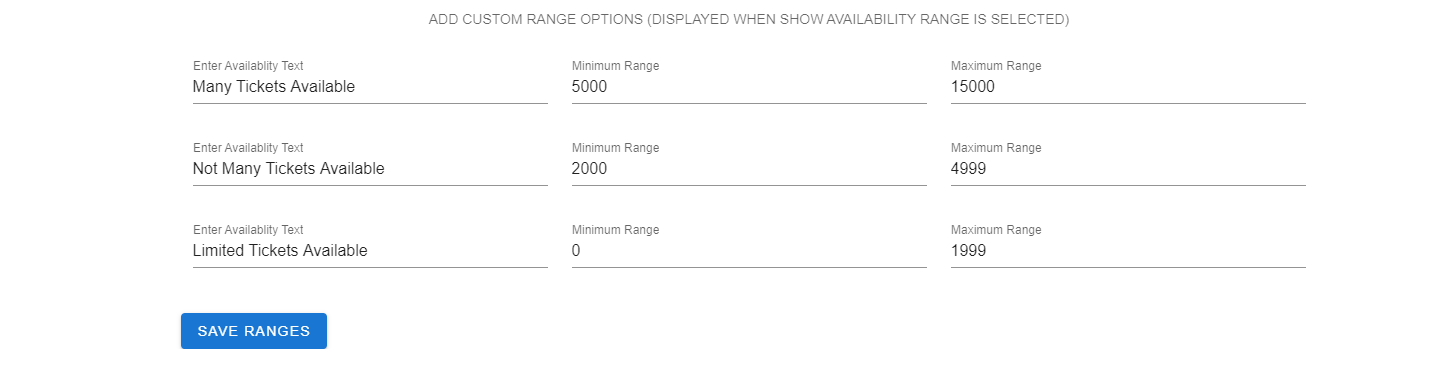
4. Setting the Promo Rotator Options
When setting the Sport Options there are three toggles that impact the display of the ticket banners on the site, if you want it active. If none of the toggles are selected, the promo rotator at the top of the schedule will not appear, but the individual games will still have any ticket links that are active.
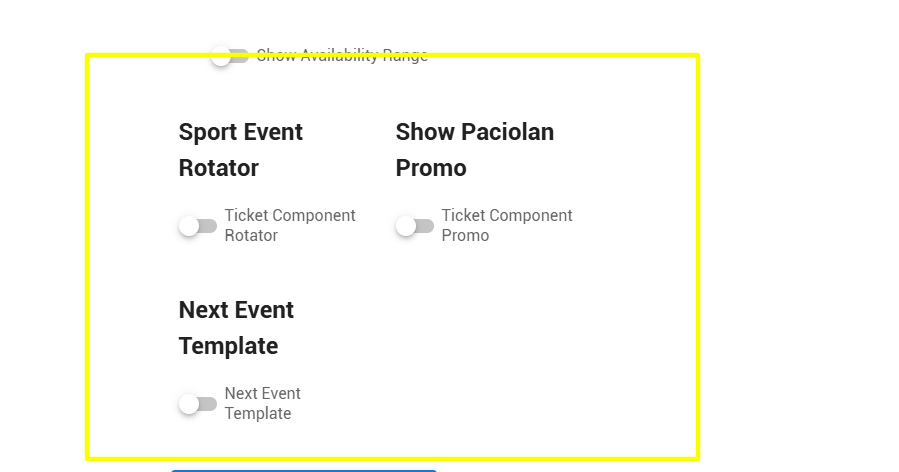
Below is a breakdown of how each of the options impact the display on the site.
Ticket Component Promo
This option will hide/show the Paciolan rotator component at the top of the schedule and display the next upcoming ticketed event.

Ticket Component Rotator
This option will allow the Component Promo to become a slider and display multiple events in the area.
Next Event Template
This option will activate a countdown that displays at the bottom of the module.

5. Applying the Settings for Individual Games
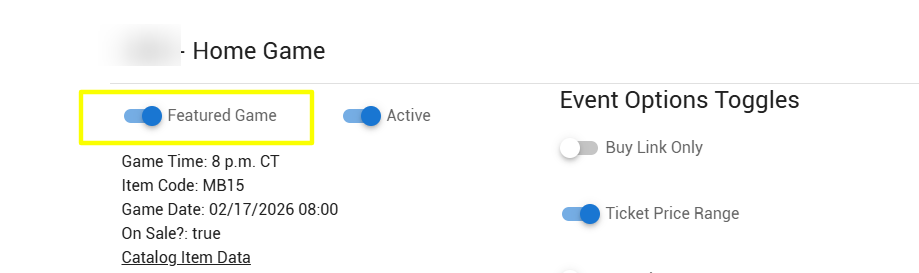
You can also modify individual games by clicking on the Events Options section. Under this section you can change the display options, feature a single game, and turn off events. The event level options will override the global sport options that the user has preset.
The Featured Game feature affects the Ticket Component on the schedule page and the App — this tells us that you want that event to be a priority so we will display that event within the ticket component.
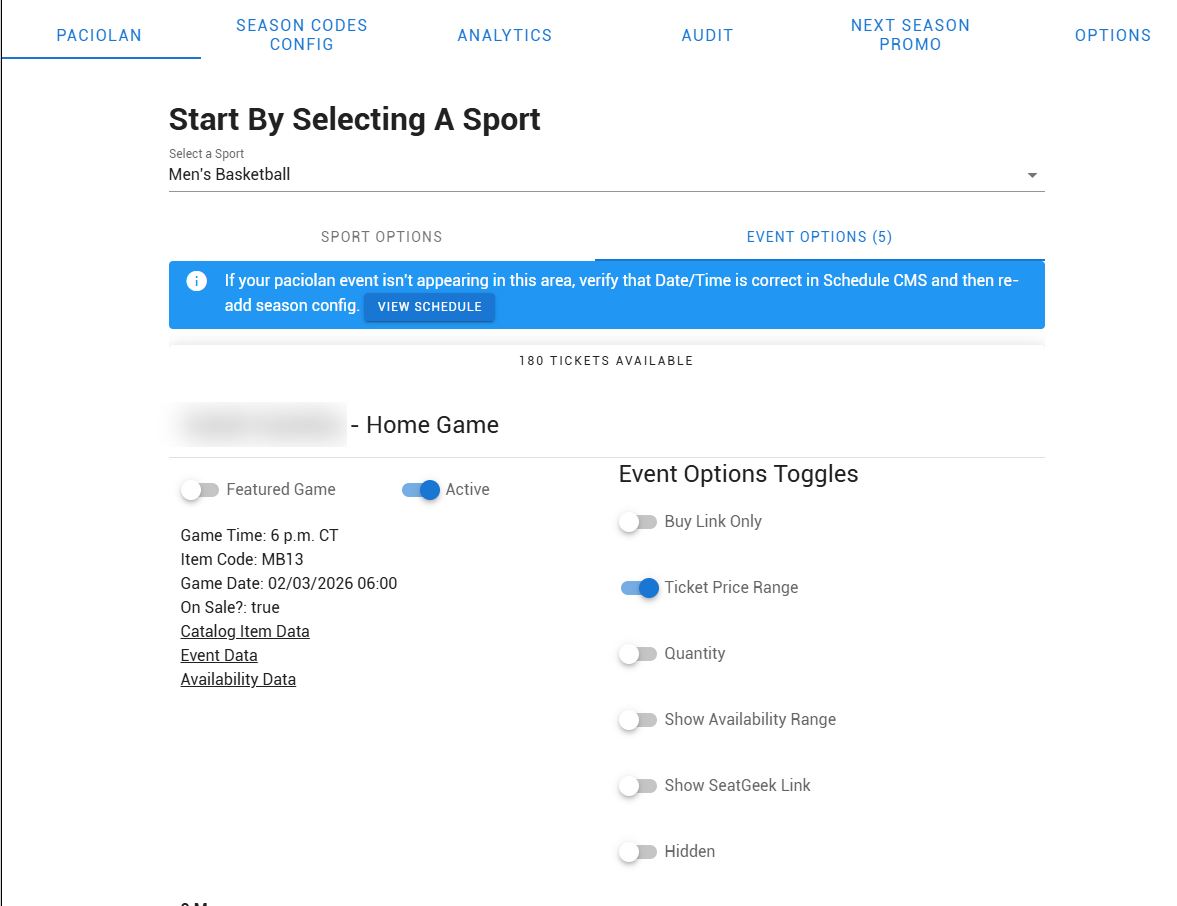
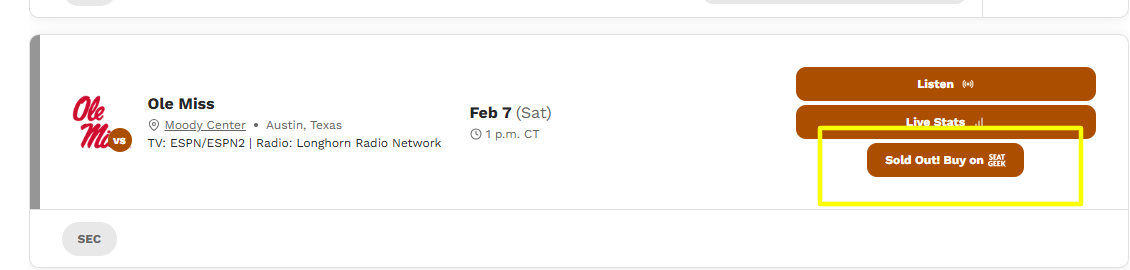
When the Show SeatGeek Link option is activated, it will display a special Sold Out message on the schedule and link users directly to SeatGeek to purchase tickets for that game.
6. Mobile App Display Options
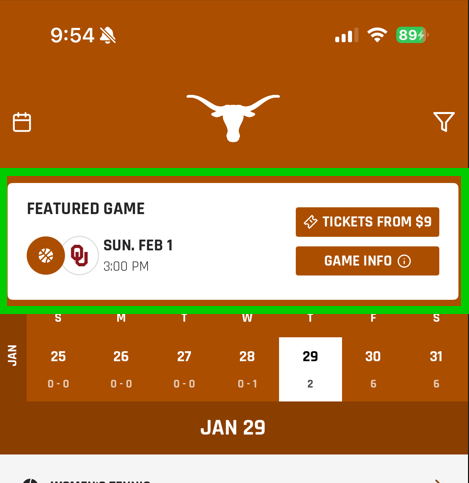
Whenever the Paciolan integration is activated for your site, the Mobile App will automatically display the Featured Game module at the top of the Schedule in the App. This module will always display in the app and cannot be disabled.
You can select a specific game to be featured by going under the Event Options tab, and using the Featured Game toggle option.
If no game is selected as the Featured Game in the CMS, the module will still display in the app and by default will automatically pull in the information for the next available game that has tickets.
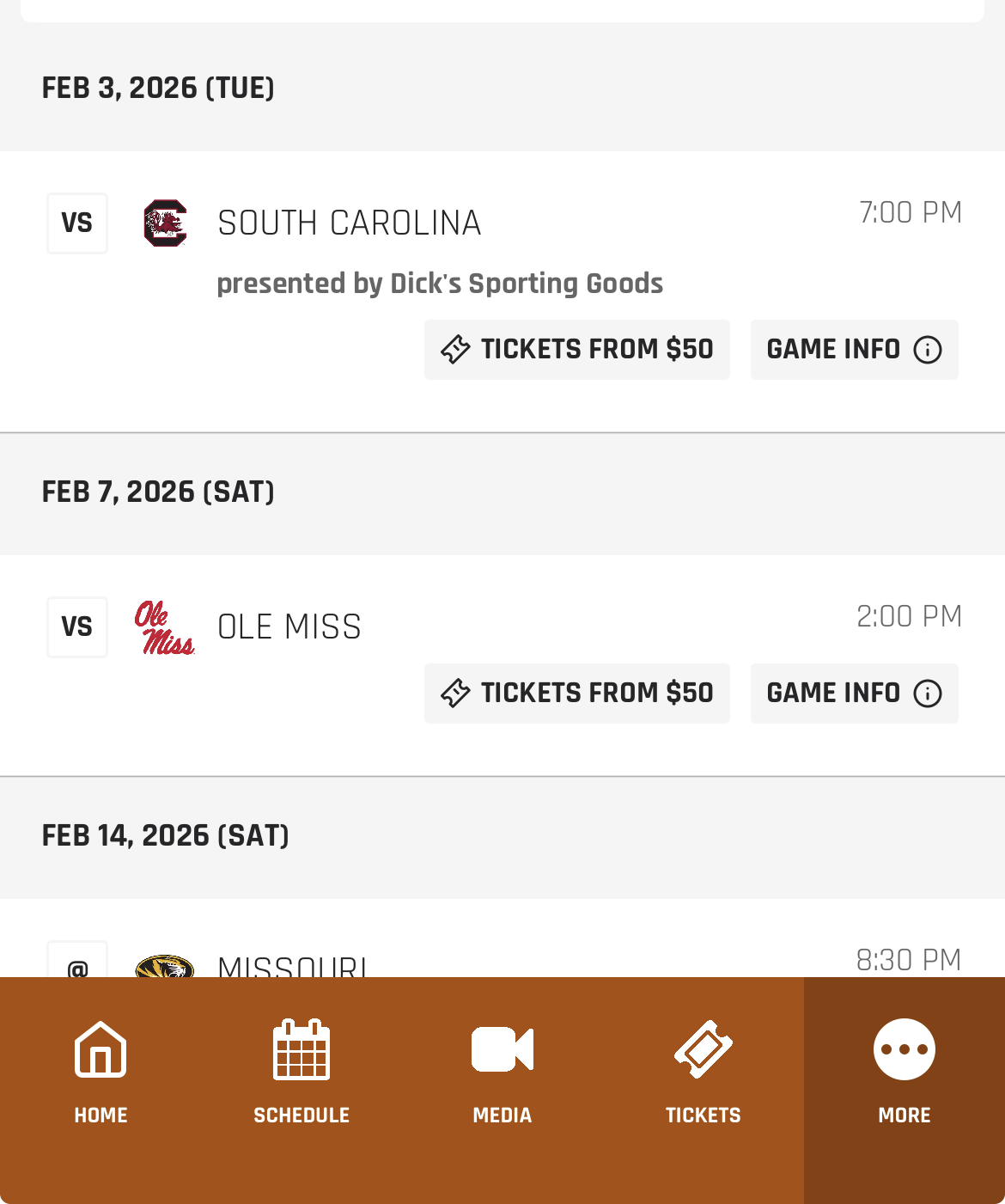
For the games that do have a ticket link, those will display next to the games in the app schedule, similar to the display on desktop.
Was this article helpful?
That’s Great!
Thank you for your feedback
Sorry! We couldn't be helpful
Thank you for your feedback
Feedback sent
We appreciate your effort and will try to fix the article