After you find the form you want to modify click edit. Here you will be able to edit the form details and fields.
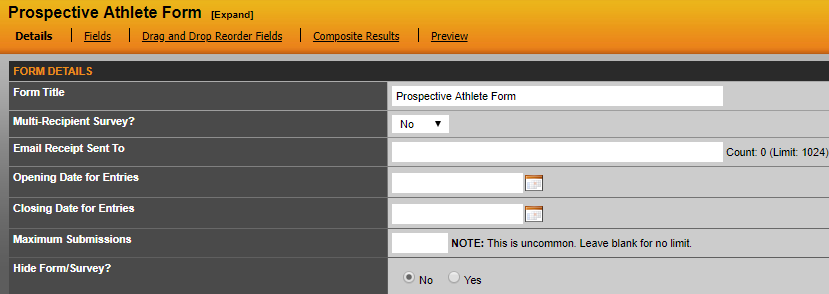
In the details section you manage the following:
1. Form Title (for example: Fan survey, football prospective-athlete form, etc.).
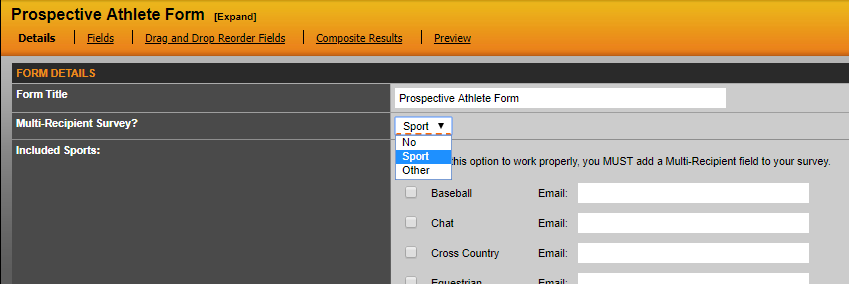
2. Multi-Sport Survey (this allows you to select from the sports at your institution. So, if you want the same form for each sport, you only have to create the form once and then results for each sport the respondent selects can be distributed via email to the people you designate for those sports. Separate email addresses by commas).
3. Email Receipt Sent to (If this is a single sport or department form/survey, you place the email addresses of people you would like the form/survey results sent to. Separate email addresses by commas).
4. Maximum Submissions so you can put a cap on the number of submissions allowed for that form.
5. Enable CAPTCHA which will help eliminate SPAM.
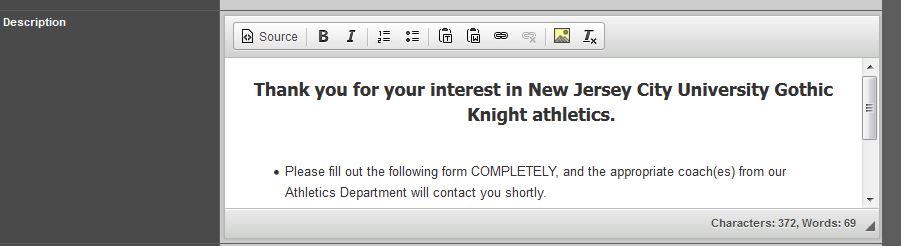
6. Description (this is what you would like to appear at the top of the form/survey explaining what the purpose of the form is).
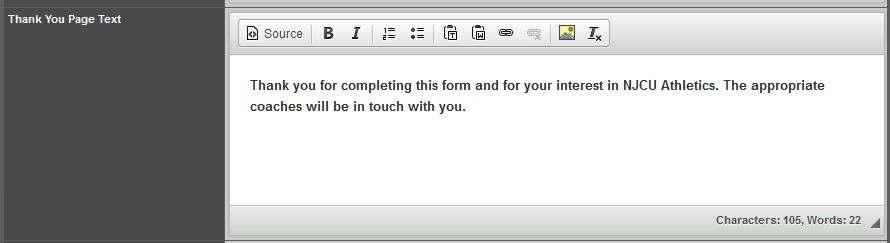
7. Thank You Page Text (this is what you would like to appear after they have completed the form/survey).
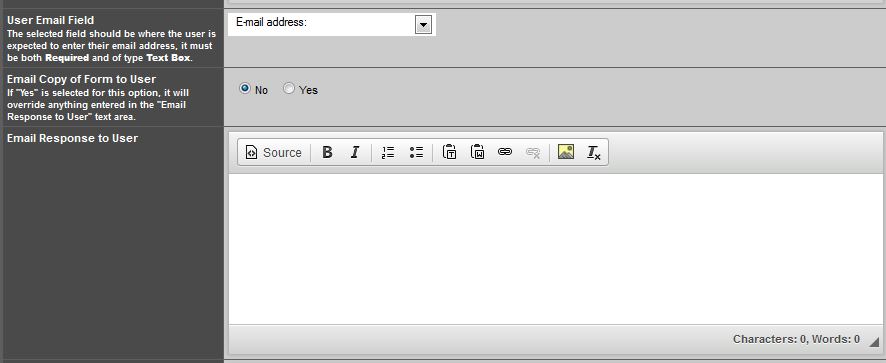
8. User Email Field allows you to send an email to the individual who filled out the form. The selected field should be where the user is expected to enter their email address. The field type must be a text box and required.
9. Email Copy of Form to User gives the the option to send the user a copy of the form. If 'yes' is selected for this option it will override anything entered in the 'Email Response to User' text area.
If marked 'no' and you have the User Email Field set correctly it will send what you have entered in the 'Email Response to User' text area.
Was this article helpful?
That’s Great!
Thank you for your feedback
Sorry! We couldn't be helpful
Thank you for your feedback
Feedback sent
We appreciate your effort and will try to fix the article