To import images from photo galleries go to media > images > add new images. Select the gallery you want to pull the image from in the dropdown menu. Then click on “Get Gallery Image”. This will load a popup window which has the list of images from that gallery like the example below.
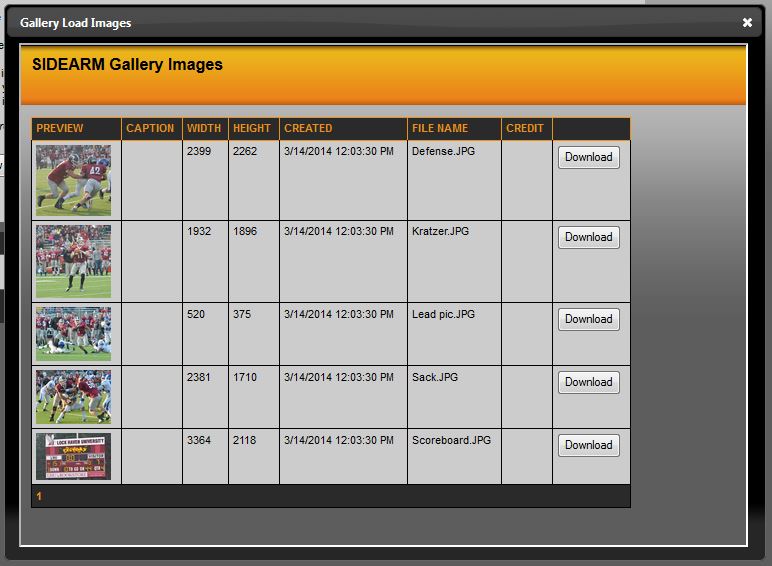
Once you have found the image you want to import, click the download
button to the right. This will now download and import that image and
move you into the usual next step for adding a new image.
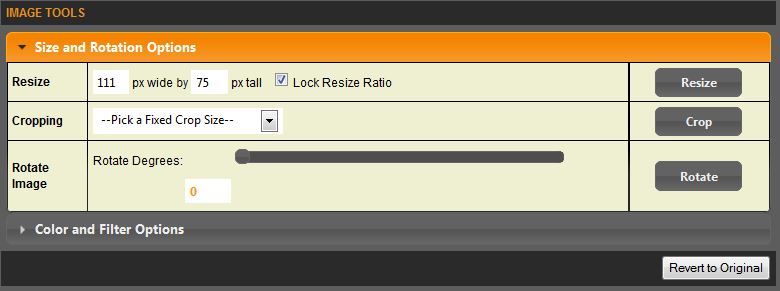
You have options to resize, crop (manually or via the fixed cropping tool what will have your primary and head shot image sizes set) and rotate.
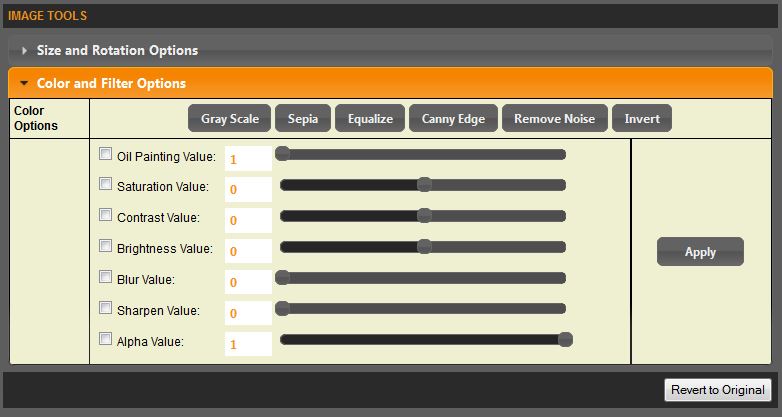
SIDEARM also gives you color and filter options, taking your photo editing software out of the equation.
Once you are down editing the photo, click continue and you will be
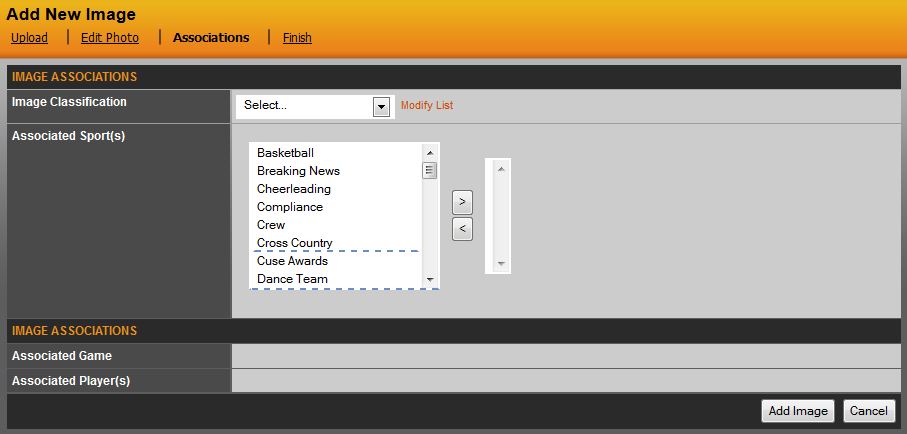
brought to the associations screen. Here you will want to choose the
image classification (to add different classifications click on modify
list next to the 'image classification' drop down. You'll also want to
associate the image to a sport and player (if applicable). Once you are
don click add image and the image will now be available for use on your
site.
Was this article helpful?
That’s Great!
Thank you for your feedback
Sorry! We couldn't be helpful
Thank you for your feedback
Feedback sent
We appreciate your effort and will try to fix the article