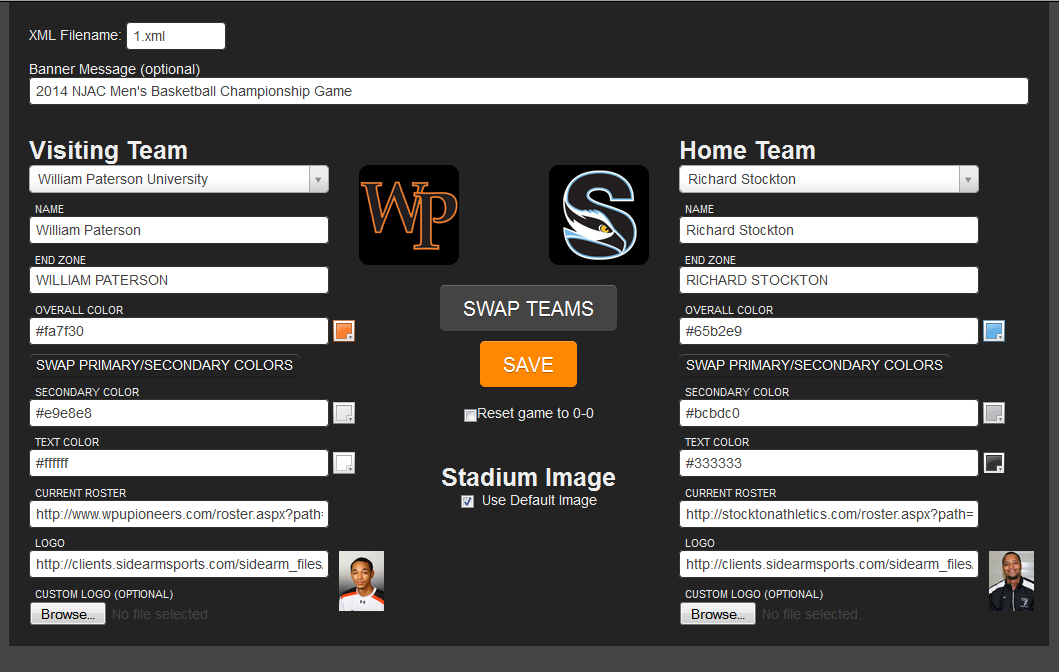
Before each game, you will want to first setup the teams that are competing by going to the control page, which can be found in the 'Schedules' Menu on your site.
XML Filename: This will default to 1.xml, but if you use a different file name for your games, be sure to enter that name in his box.
Banner Message: Use are to type a message that is displayed at the top of the Live Stats Page.
To add a Visiting or Home team, type the name of that team into the box and you will see a list of options, similar to when working with the Batch Opponent area in Schedules. Once you find the team of choice, click on it and this will then load that team's Name, Colors, Logo and if they are a SIDEARM client, a link to their roster for that sport to load player head shots.
If a school doesn't appear in the database, you can enter their information manaully in the boxes provided and we also suggest reaching submitting a ticket so our support team can add them into our database.
Swap Primary/Second Colors: This buttons can be used to easily swap the primary and Secondary colors for when competing against a school that uses the same color scheme as your school.
Swap Team: This orange button will allow you to easily swap the home and away team information.
Reset game to 0-0: Clicking this box and then hitting 'Save' will wipe out the existing game on your site live stats and set the score to 0-0. This can be used in between games or as a quick way of resetting game without having to load anew one in StatCrew, activating and sending a file through to the server.
Was this article helpful?
That’s Great!
Thank you for your feedback
Sorry! We couldn't be helpful
Thank you for your feedback
Feedback sent
We appreciate your effort and will try to fix the article