Game Center is a fan-focused experience that delivers game-related stats, stories, and video. It offers an engaging, dynamic interface that updates in phases before, during, and after each game.
Game Center consolidates all game coverage links from the schedule into a single location. Each game's Game Center has its own unique URL, making it easy to link, share, or repurpose as needed.
Game Center is ONLY available for football. More sports will be available in the future.

SIDEARM Live Stats are required for the best Game Center experience.
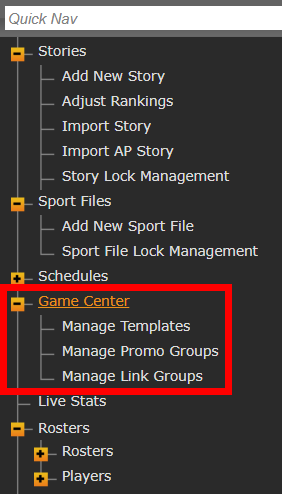
Once enabled, you will control Game Center from a new section within your SIDEARM content management system (CMS).
Jump to section:
- Manage Templates
- Manage Promo Groups
- Manage Link Groups
- Individual event Game Center edits in Schedules
Manage Templates
You can begin your setup in the CMS under Game Center>Manage Templates
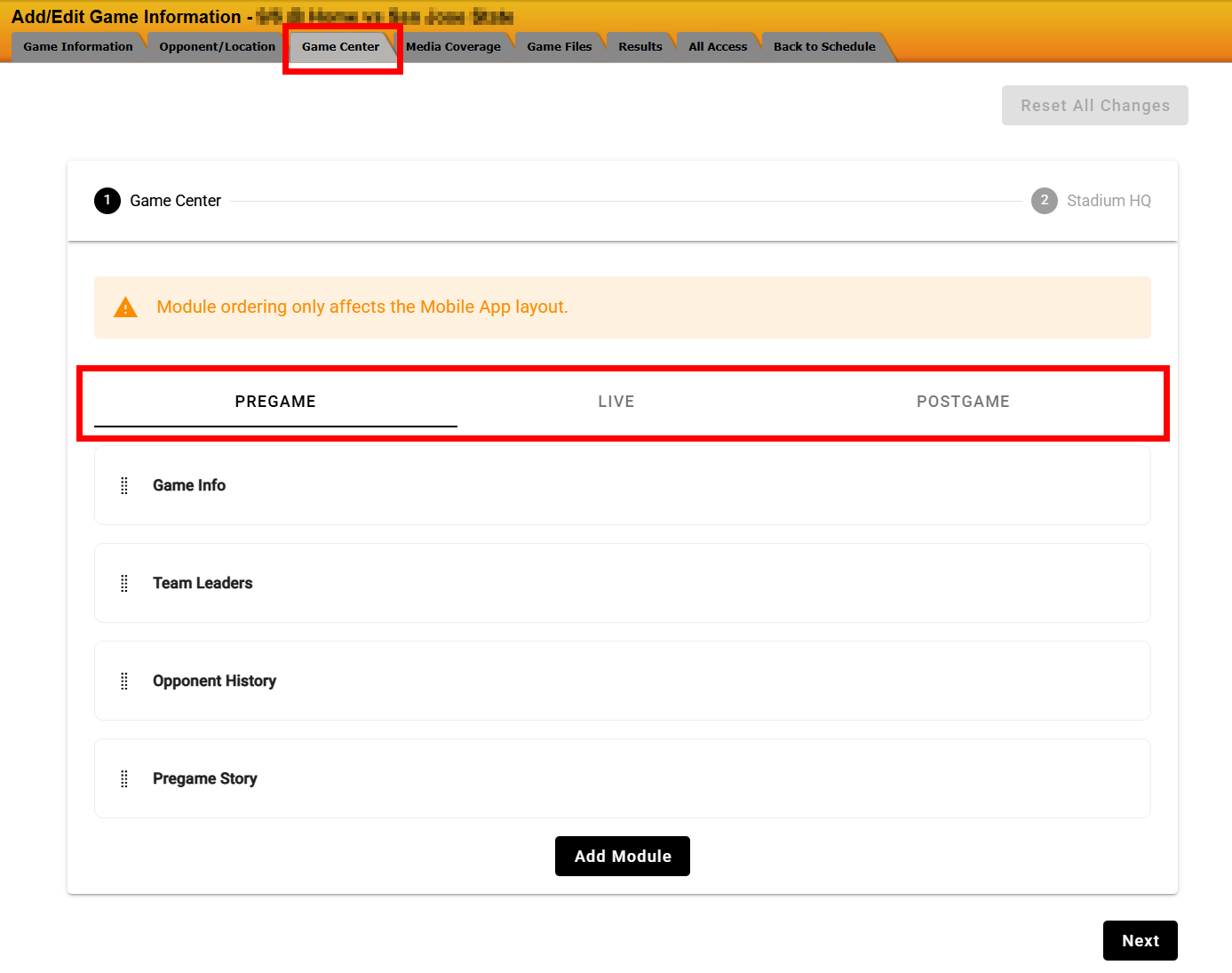
Each sport will utilize a single template that will determine the layout for all games, with 3 different phases that are available to adjust. Each phase represents a different status of the game and will determine what information appears.
Available Template Phases
PREGAME - this phase will display in the days leading up to the game and will highlight Game Info, Pregame Story, a Clip Playlist, as well as other selected items
LIVE - The Live phase begins once we receive Live Stats files for the game indicating that it has started. During this phase, the Game Center will display the live stats for the game
POSTGAME - Game Center switches to the Postgame phase once the Recap Story is associated to the game on the schedule. This will allow it to display the story, box score and other related information
For each phase there are preset items that will be included by default and you can drag and drop to reorder items in each phase, with the ability to add the additional modules(limit 1 on each phase), by clicking Add Module.
You can read more about the Clips Playlist module here.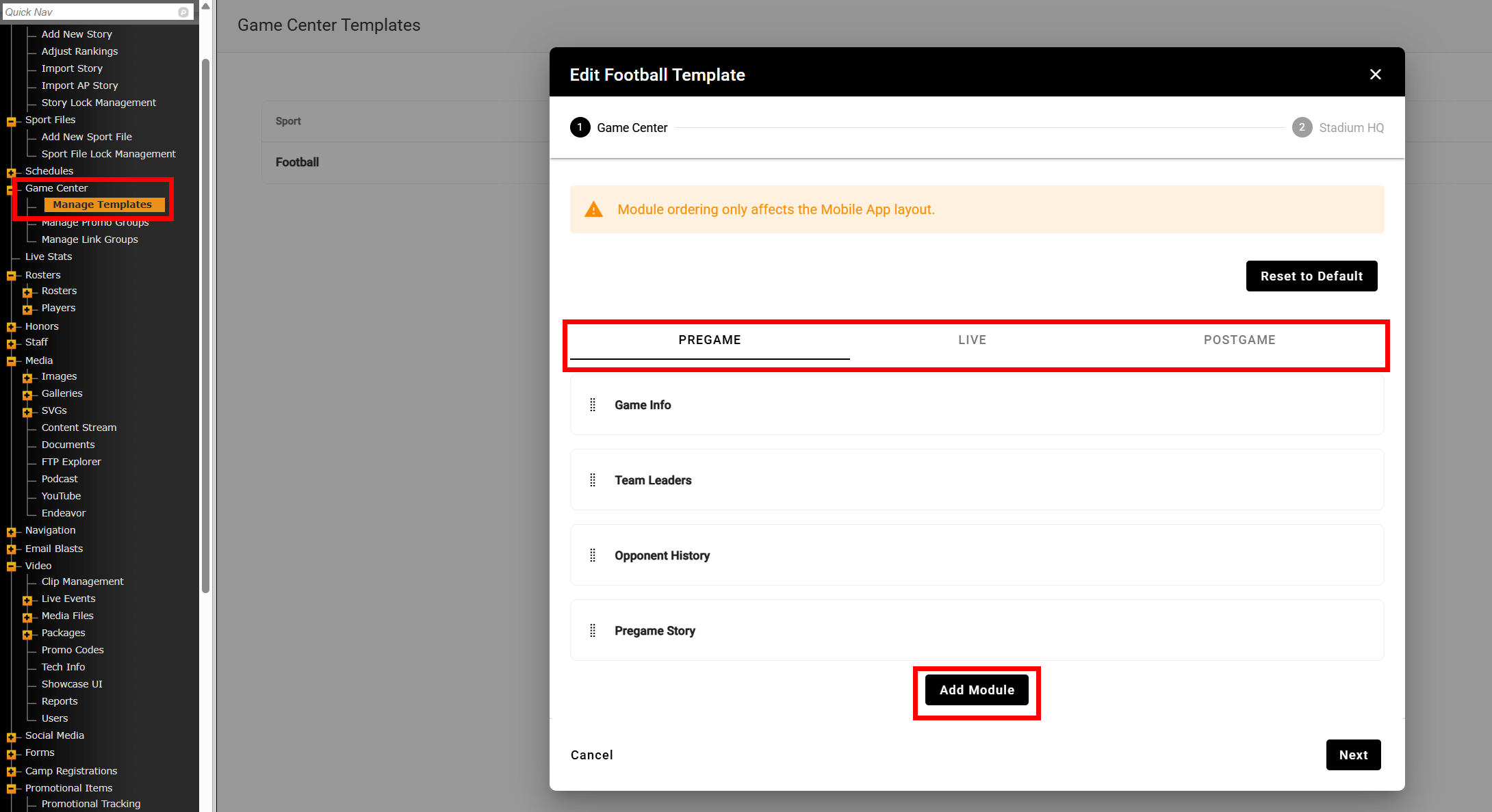
Manage Promo Groups
Promo Groups can be setup in the CMS under Game Center>Manage Promo Groups and are a collection of promos that can be set to display on any of the game phases in a template.
Each promo that you setup within a group can have an image, title, description, button text, and button link assigned.
The recommended image size for promos is 1052x592px (16:9 ratio)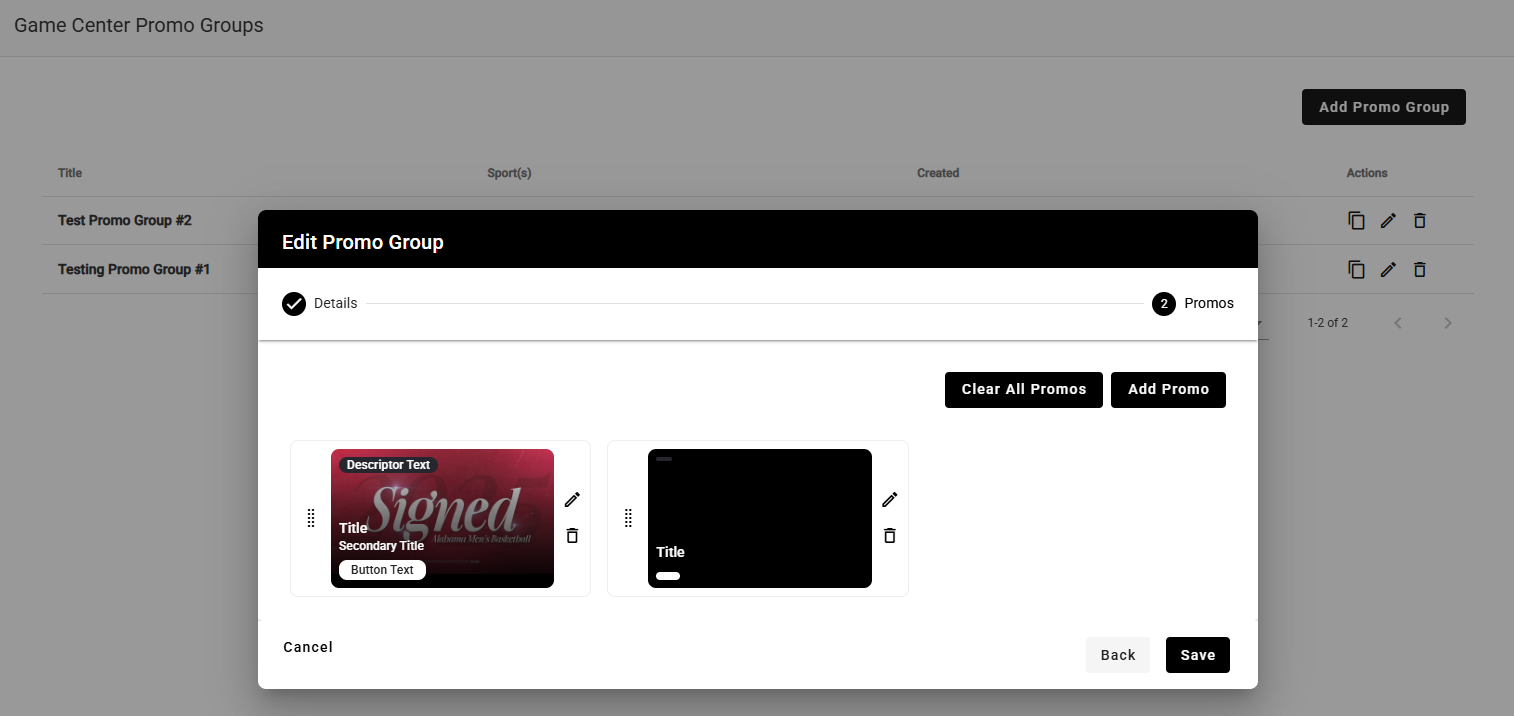
Manage Link Groups
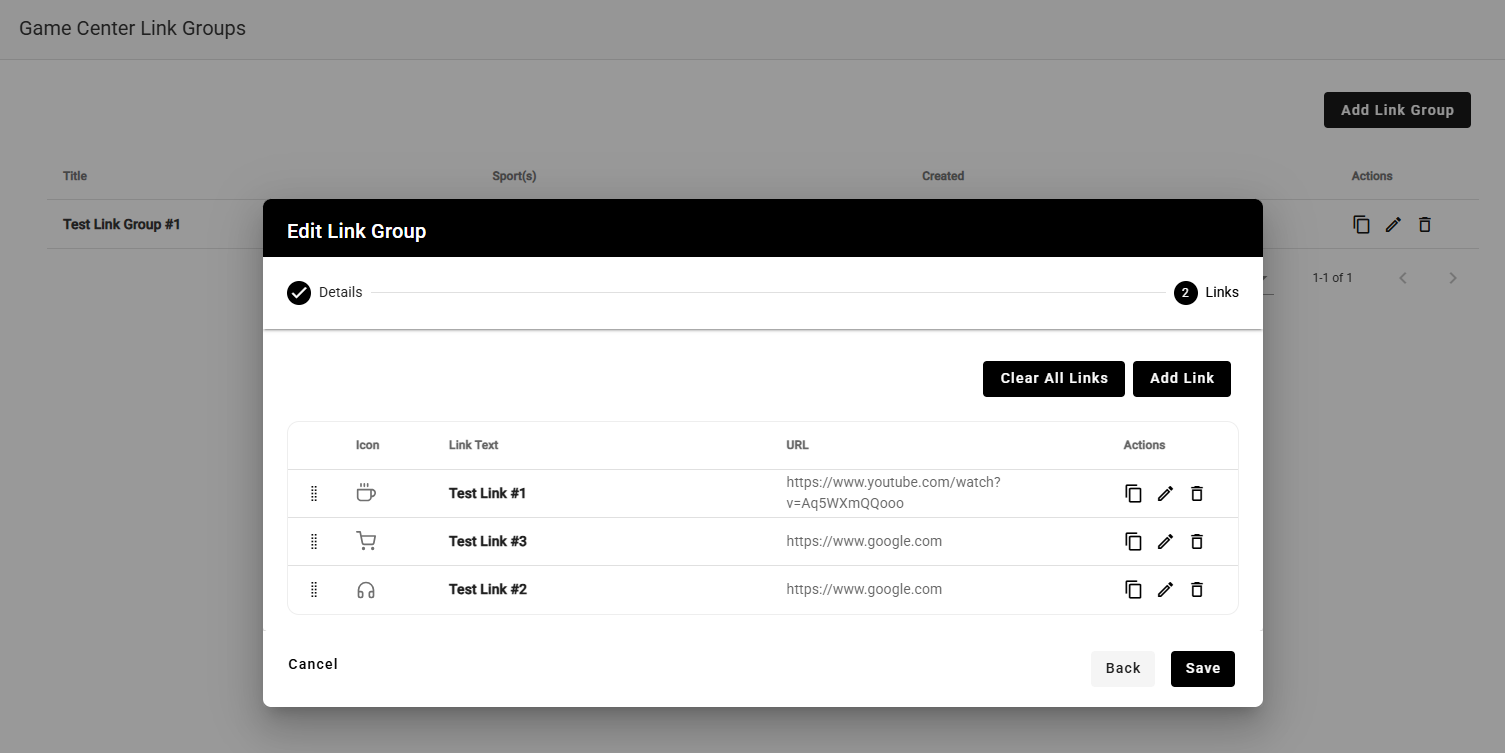
Link Groups can be setup in the CMS under Game Center>Manage Link Groups and are a collection of links that can be set to display on any of the game phases in a template.
The Link Group can be set to display as a List or Grid and each will one will have an icon, text, and a URL assigned.
Link Groups will only display in the Stadium HQ portion of the app and are frequently used for links that enhance the In-Stadium experience, such as Parking Maps, Concessions and other Integrations that you may have.
You can see more information on Stadium HQ here.
Individual event Game Center edits in Schedules
When editing a game on your schedule in the CMS, there are a couple of Game Center items that you can manage there.
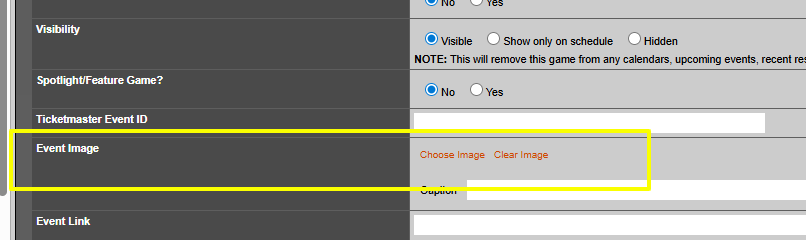
Event Image
For your Mobile App, you will want to edit the games on your schedule and select a photo using the Event Image option on the schedule. The Game Center on the app will utilize that Event Image for all phases except for the Post Game phase, which automatically pulls the image from your Recap Story.
We recommend a 16:9 ratio image(ex: 1920×1080px)
Game Coverage Links
The Game Coverage tab will continue to work as it always has, allowing you to enter in standard coverage links. Those links will automatically be pulled into the Game Center, so you will not need to duplicate those as custom links.
Customize Game Center Template for Single Game
When editing games on the schedule, you will now see a new Game Center tab available. This will allow you to make single game customizations to the Game Center template that will only impact that specific game.
This can be used for Bowl games or other special occasions where you want to adjust the template or to apply different content to any of the custom modules.
Was this article helpful?
That’s Great!
Thank you for your feedback
Sorry! We couldn't be helpful
Thank you for your feedback
Feedback sent
We appreciate your effort and will try to fix the article