Now that you have the initial ticket info added to the page under the global config, you can start to add individual experiences/sport info to the page.
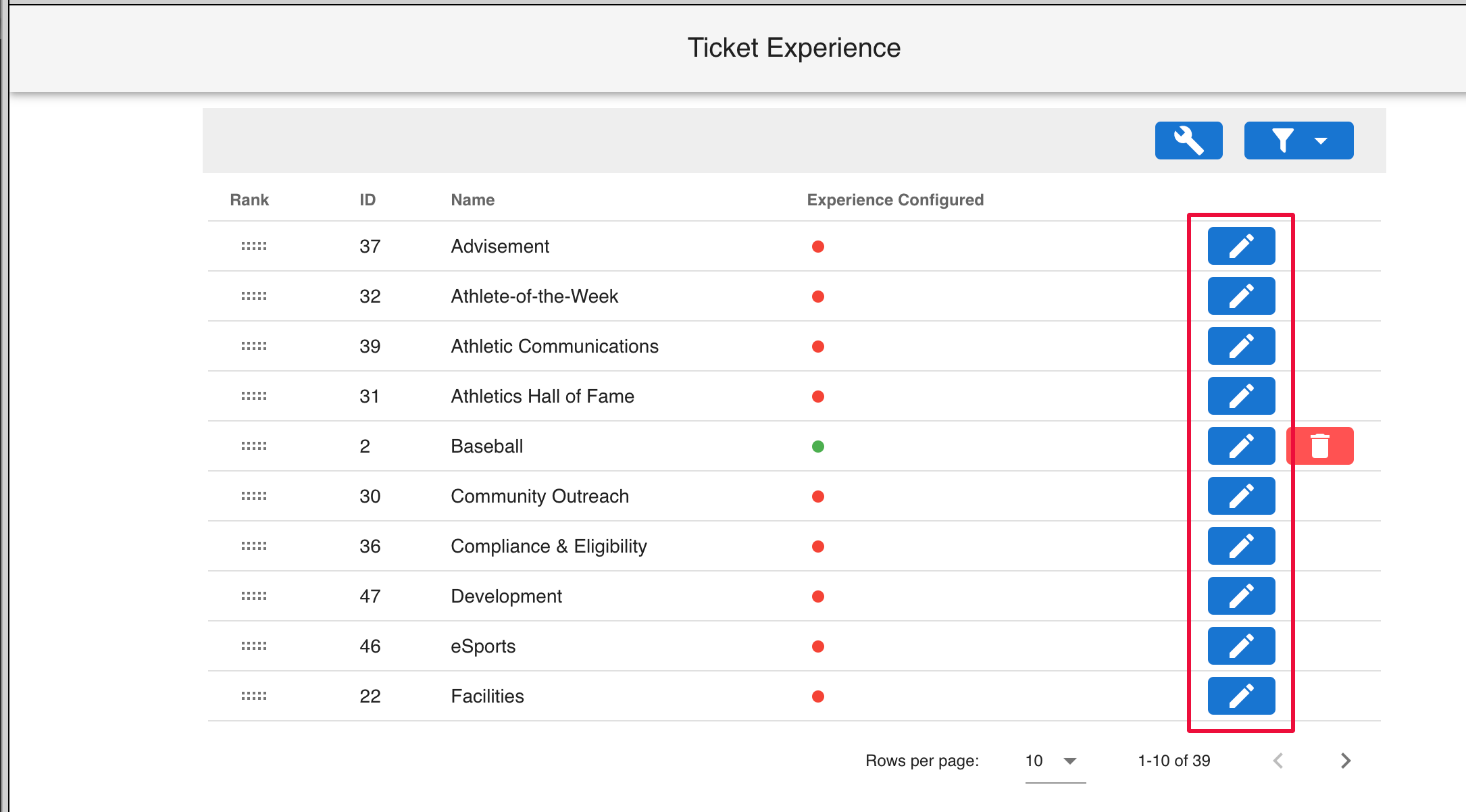
Right now, you'll see all of your sports listed have a red mark next to them under the "Experience Configured" column - this means they are currently not active on the tickets page. To activate, click on the blue "edit" button next to the sport.
Then, choose an image you want to display as that sports background on the page.
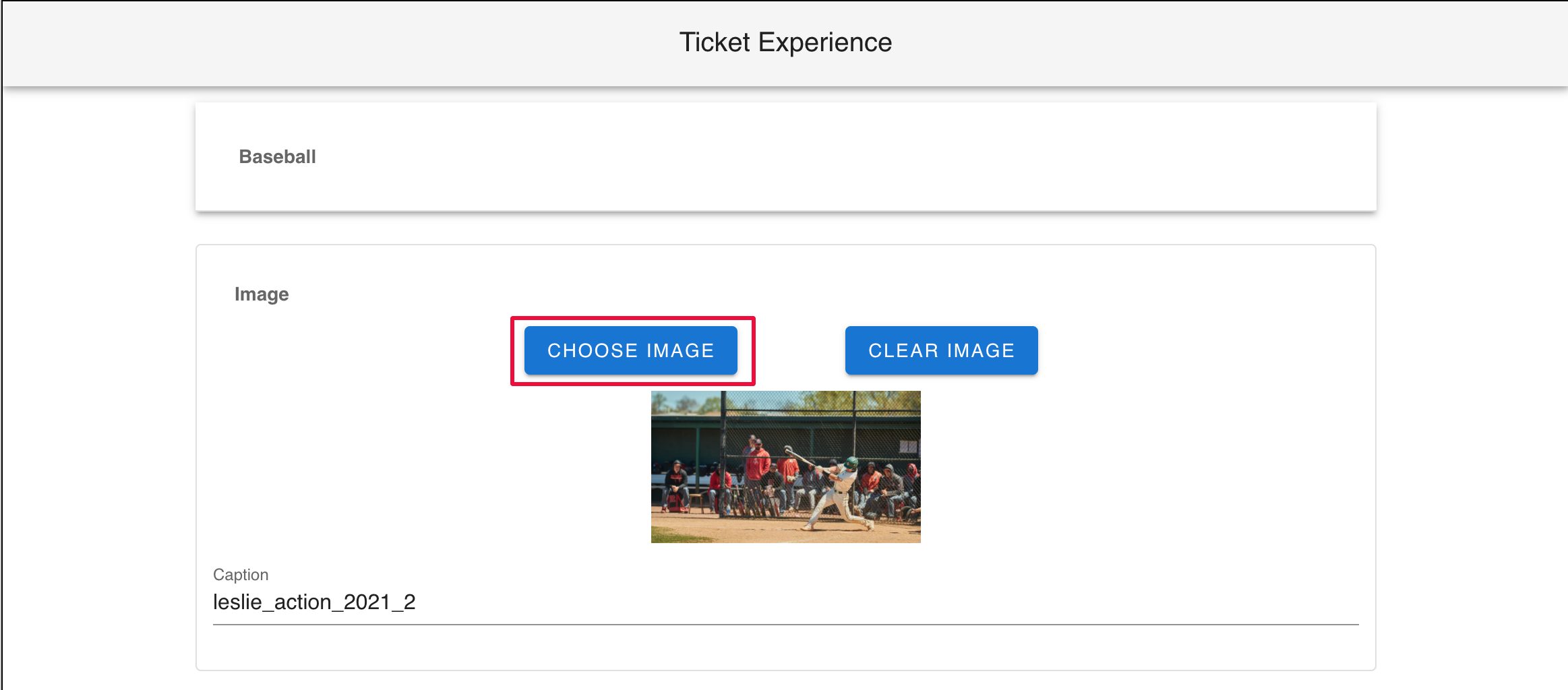
(Note: Make sure the image you want to use is first uploaded under Media>Images on the back end before selecting the image, as there isn't an "add new image" option when choosing the photo)
Adding Sections
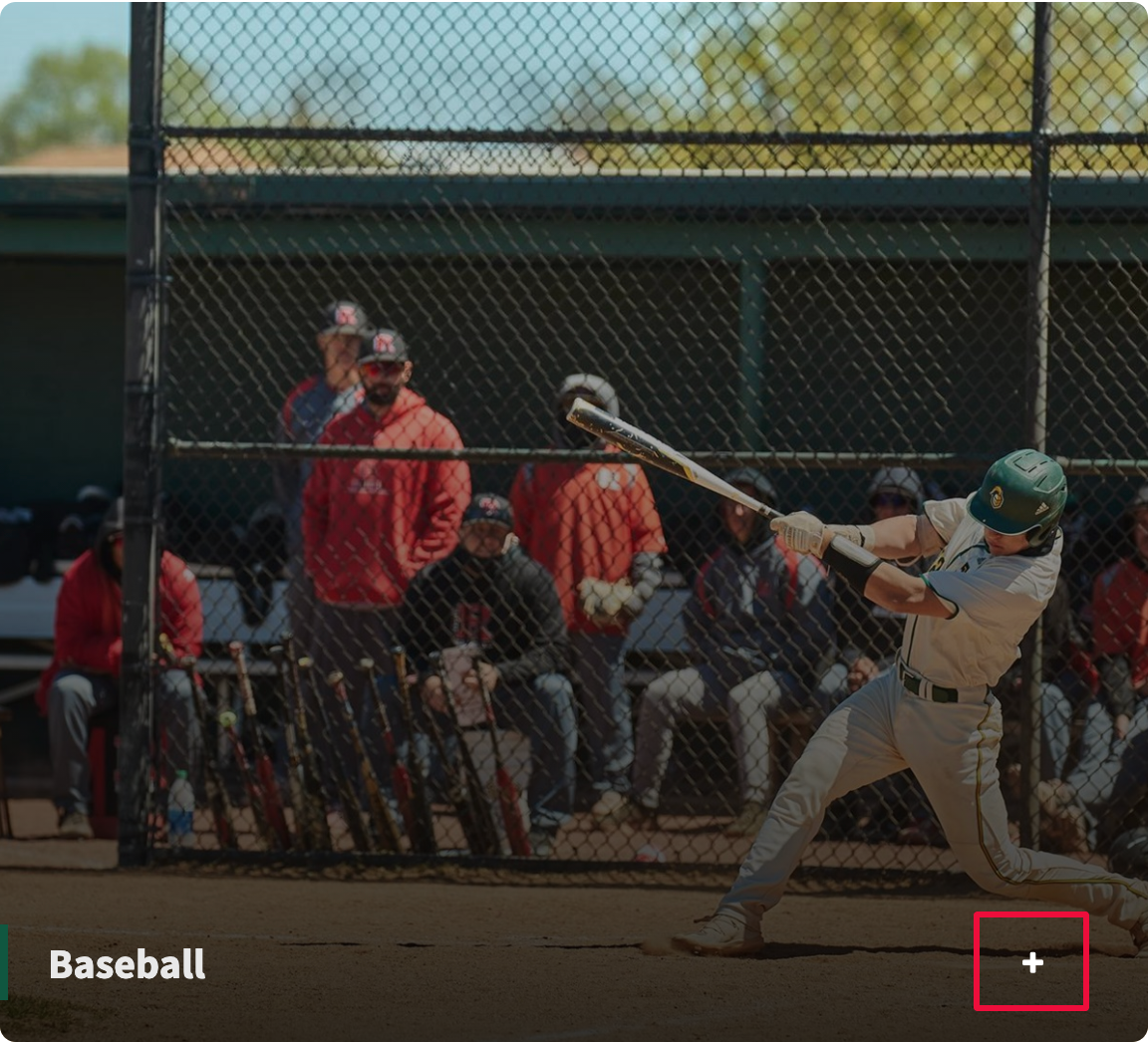
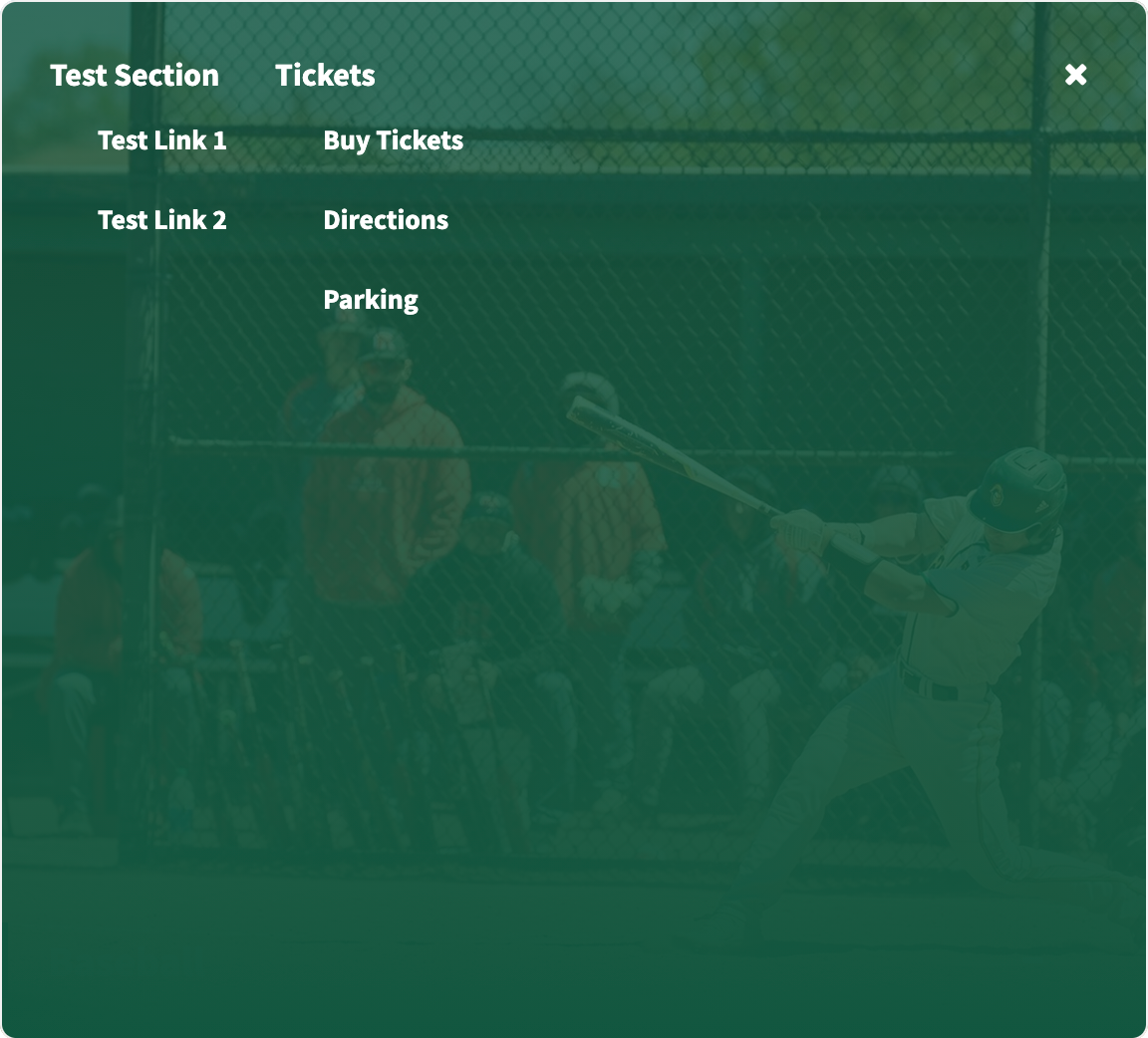
Next, you'll be able to add sections and links that will display on the front end for that sport. These will appear when the user clicks the plus button next to the sport name on the front end. Example:
 |  |
To add a section, click the blue "add section" button and give it a title. To add links to that section, click on the "add" button in the links box and enter the link text and the URL it should point to. Click the save icon on the right to save the link:
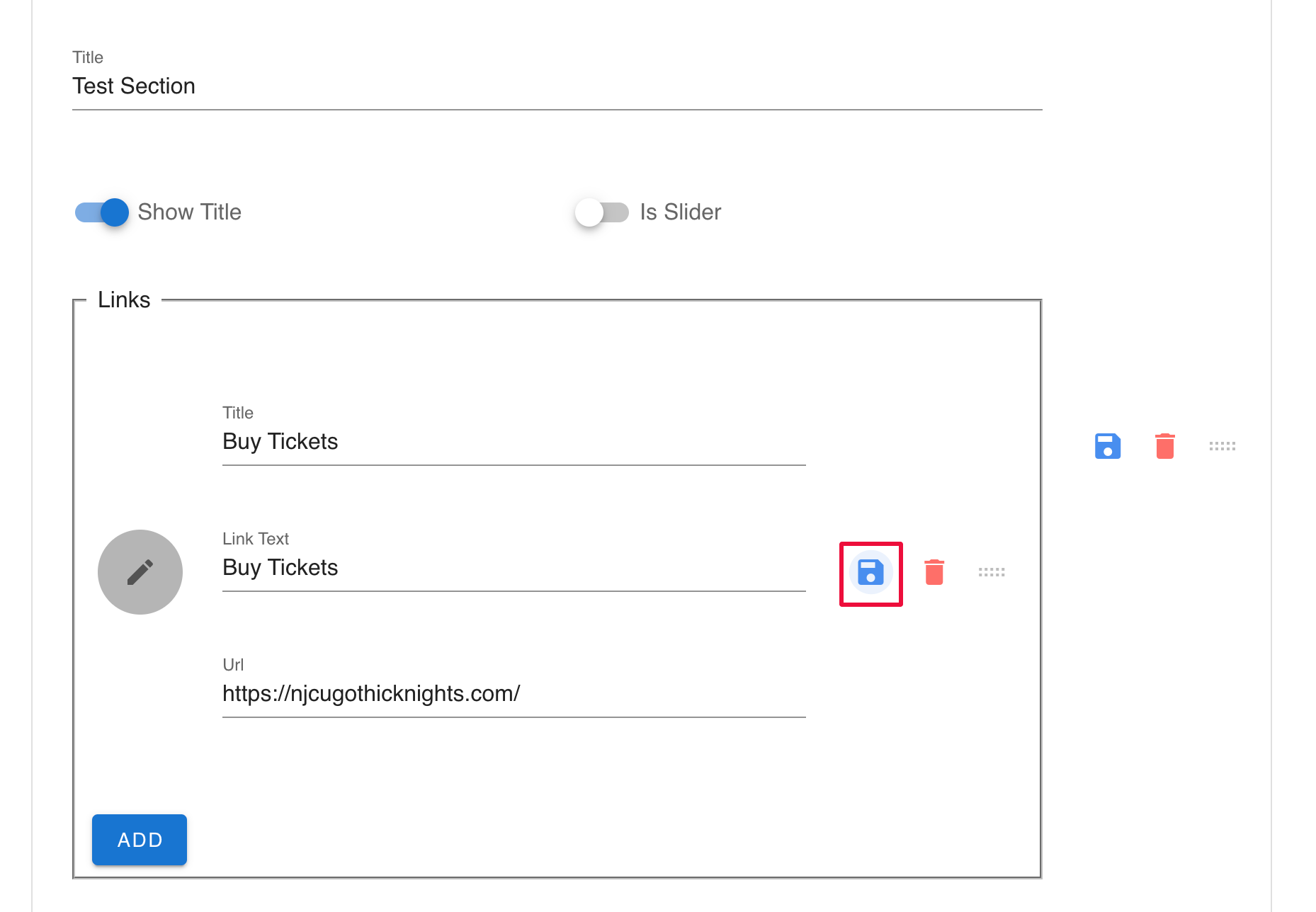
Once you've added all of the sections and respective links for that sport, click the green "save" button down at the bottom. This will make the sport live on the tickets page.
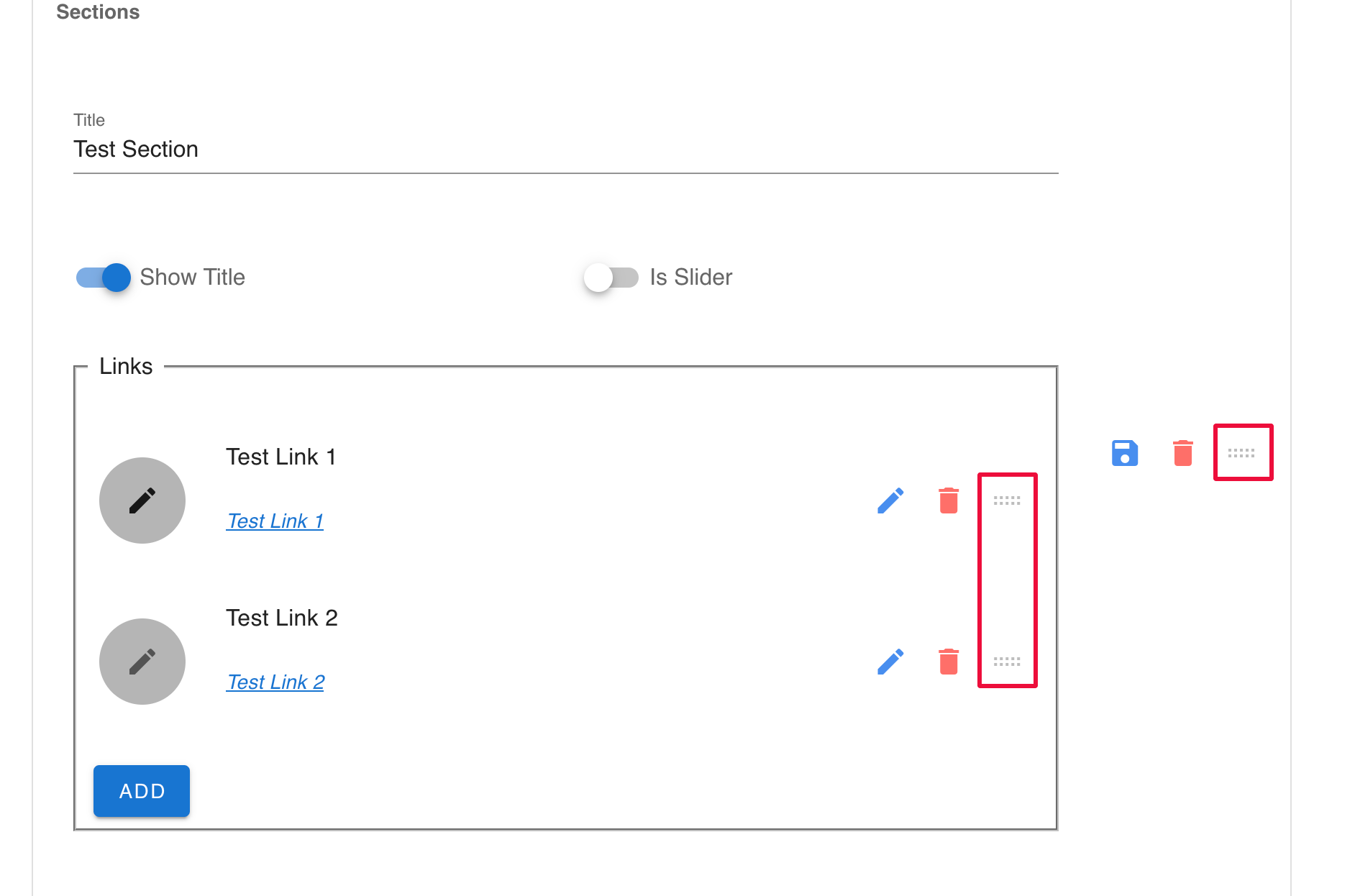
Once a sport is activated, you'll be able to go back and make further edits to the sections/links at any time. This includes changing out the links, removing sections/links, or rearranging the sections or link orders by using this tool to drag and drop/re-order:
You can deactivate or remove a sport from the tickets page at any time by simply clicking the red "delete" button next to the sport:
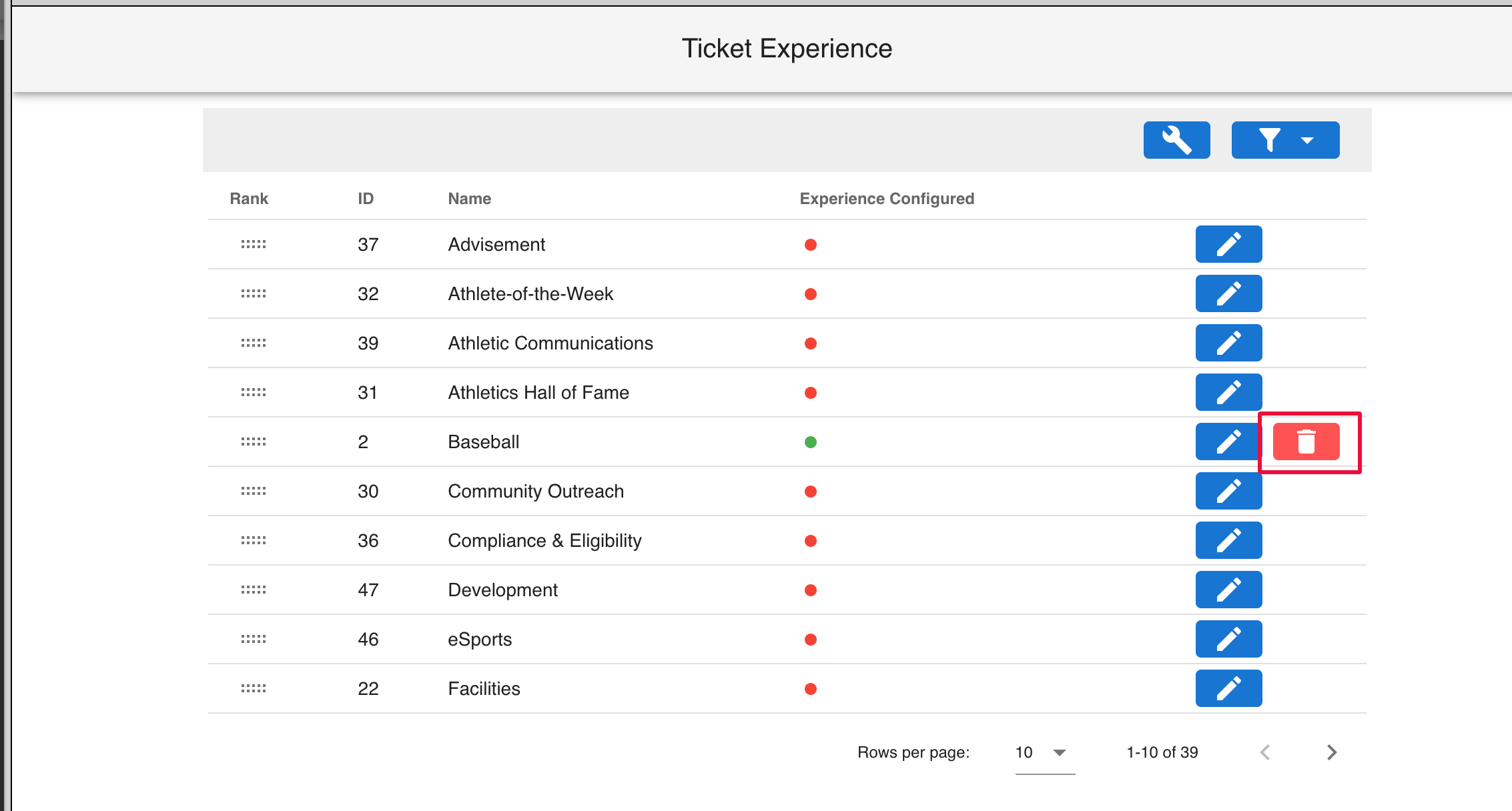
Clicking the delete option here will not permanently remove the sport from the listing on the back end, it will only remove it from the tickets page on the front end. That way, you'll always be able to go back and activate the sport again down the road.
Was this article helpful?
That’s Great!
Thank you for your feedback
Sorry! We couldn't be helpful
Thank you for your feedback
Feedback sent
We appreciate your effort and will try to fix the article