Adding / Editing Facilities
Under the Site Settings section, you will find the option for Facilities. Clicking on this will load the following screen that will list all existing facilities on your site.
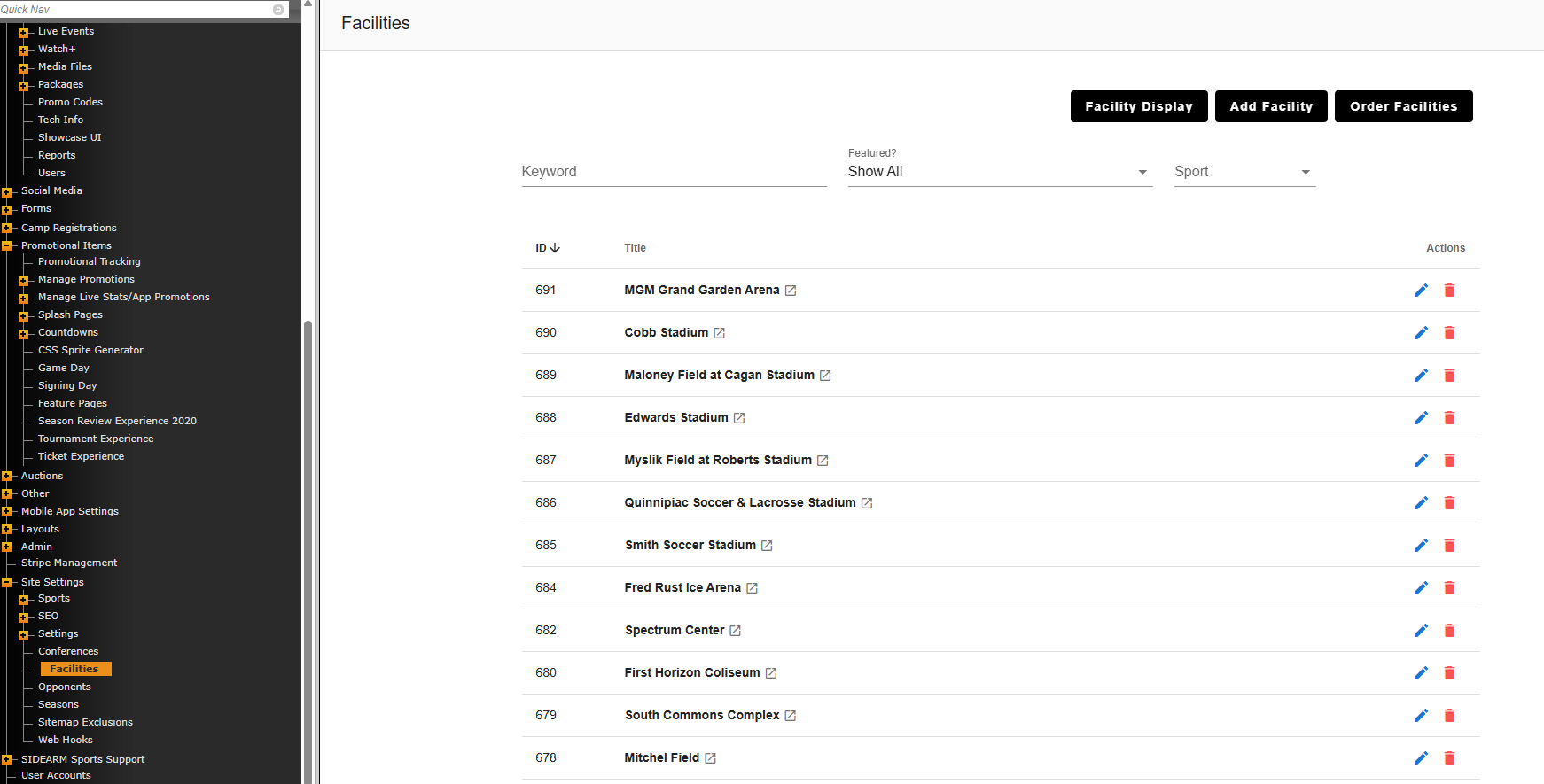
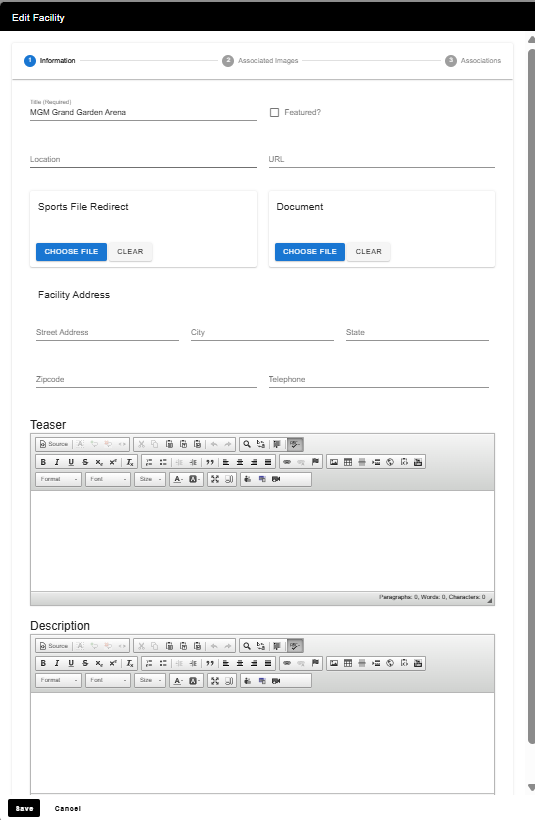
After entering this page, you can add a new facility by clicking "add facility" button, reorder appearance of facilities on frontend by clicking "order facilities" or choose to edit an existing facility by clicking pencil icon. When you edit an already existing facility, you will be brought here:
Associating Images
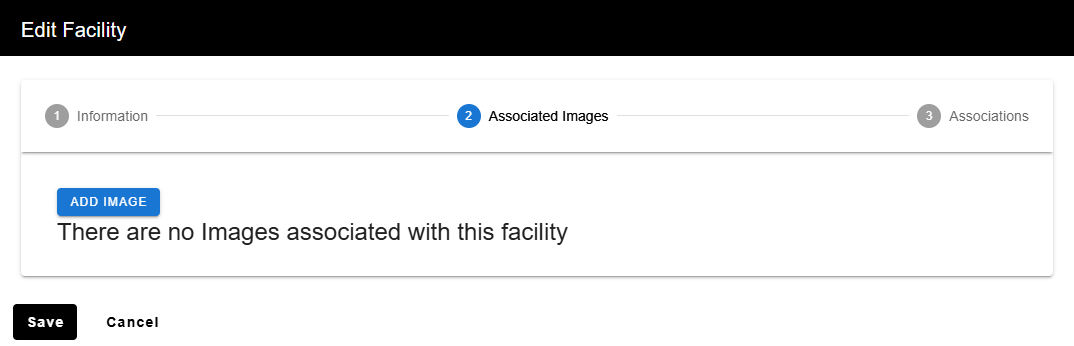
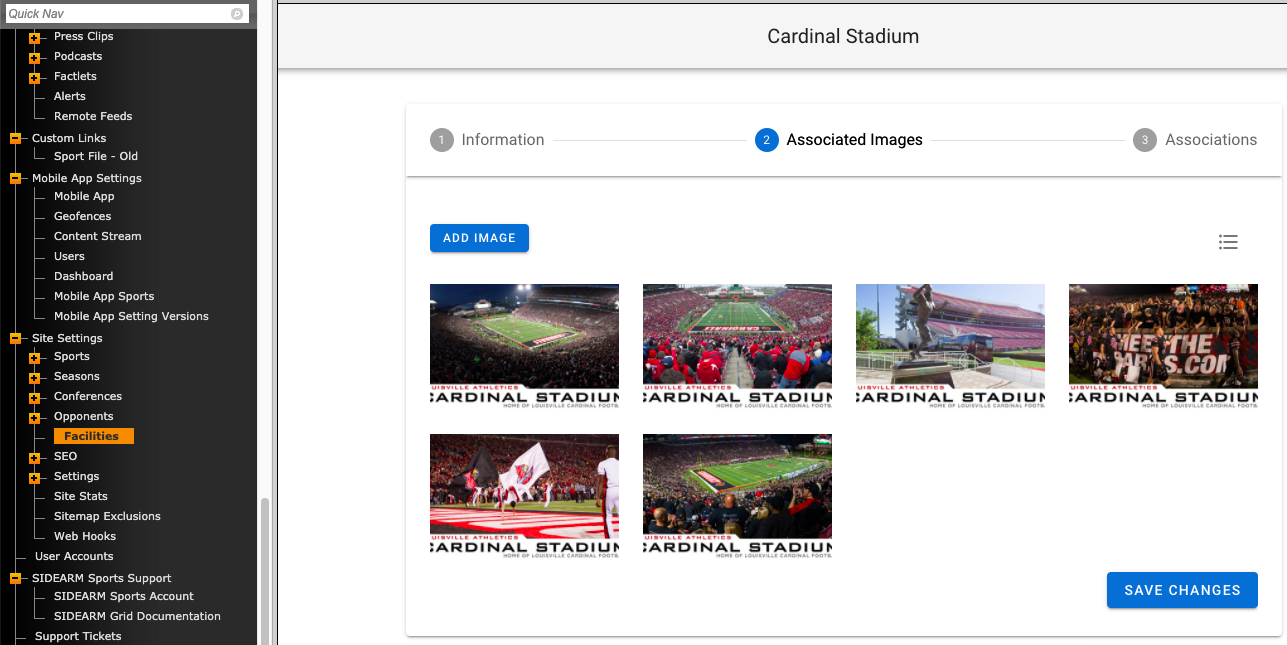
Once you have filled out the appropriate information on first page, the next step would be to grab photos from Images database on backend that are associated with the facility by clicking "add image":
 If a facility is already in your database, you can associate it with images on details tab of image:
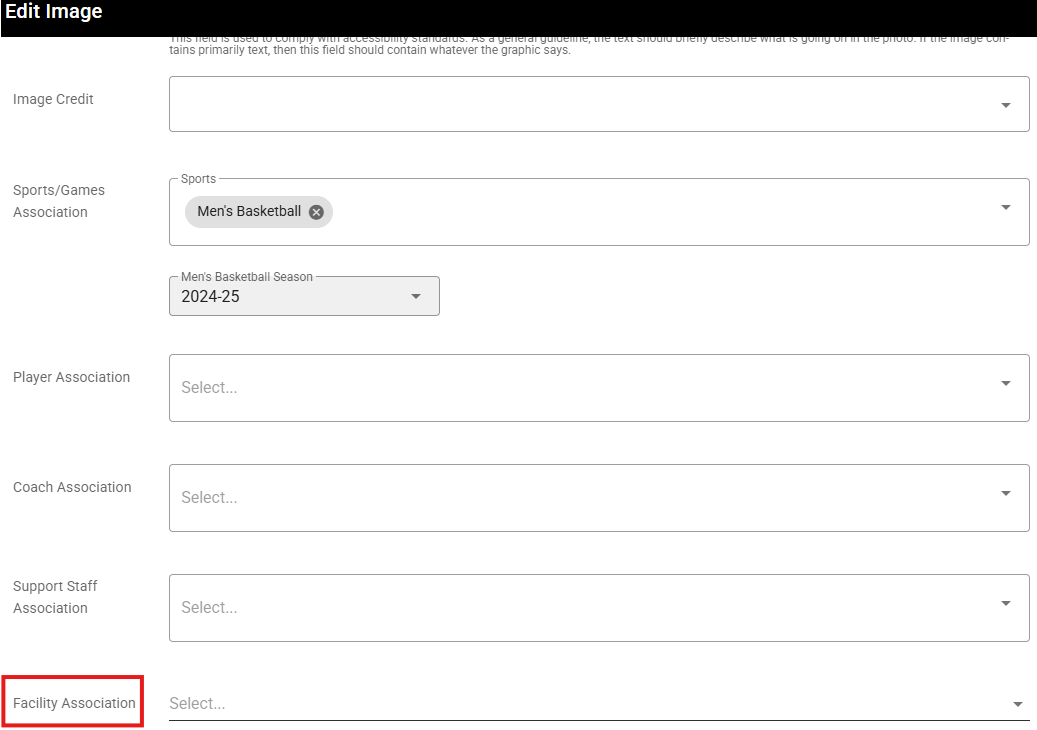
Once you do this, you can then save the image.
Organizing Images
Once you have images associated with the facility, you can go back and edit the Facility again and click on the Associated Images tab and then can click, drag and drop to set the order for which you want the images to appear.
Associations
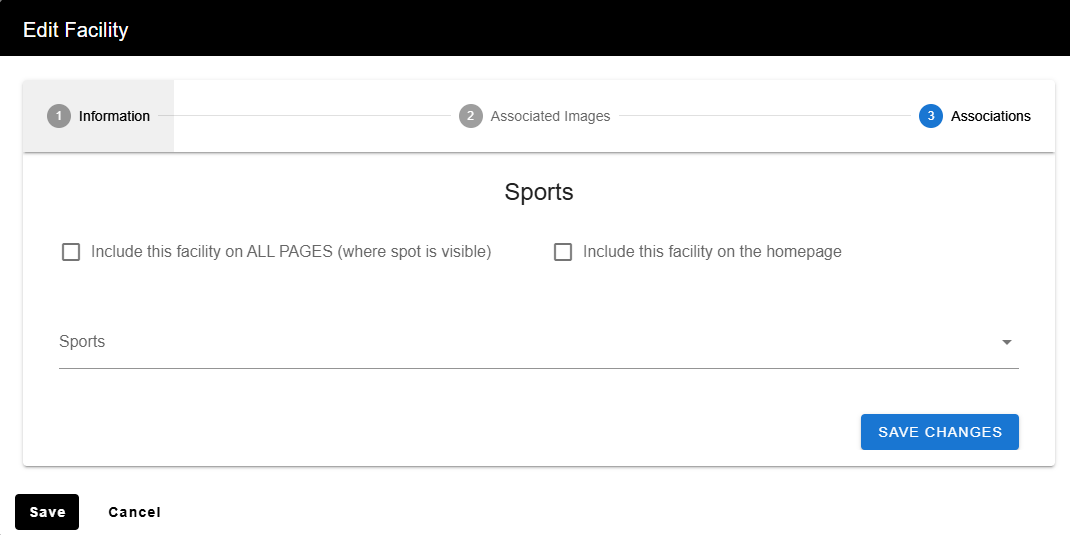
The last tab on editing facility page is the associations tab where you can specify which sports are associated with facility and where it can appear on front end
Was this article helpful?
That’s Great!
Thank you for your feedback
Sorry! We couldn't be helpful
Thank you for your feedback
Feedback sent
We appreciate your effort and will try to fix the article