Located in the schedules menu, the Game Sync feature allows you to view all the games for a specific sport and see if they are properly synced up with your SIDEARM member school sites. Below are the step by step instructions on how to utilize this feature.
The first screen after clicking on Game Sync gives the options to filter by sport, season and then if you want to see all games currently Synced and if you want to see the entire season or just future games based on today's date. The Game Sync works by matching up Team and Game ID's. The way the Team ID's are matched up is when the opponent is matched on the backend either in the batch opponent area or the easier way is to utilize the Opponent Fixer tool. We suggest you use the Opponent Fixer tool and make sure your schools are matched in there before using the Game Sync tool.
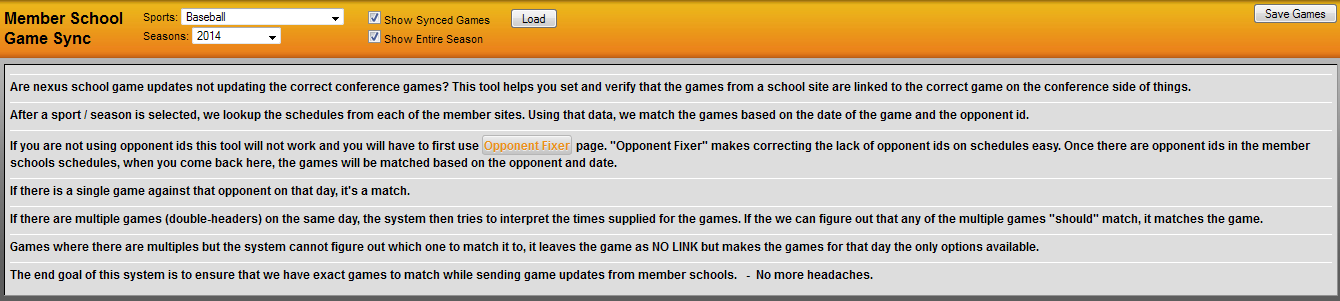
After you have run through the Opponent Fixer, use the filters at the top of the page to choose the sport and season you wish to edit. For our example, we are using Baseball from 2014 and have chosen to display the synced games and show the entire season. The first time you hit load, you will see something similar to the list below.
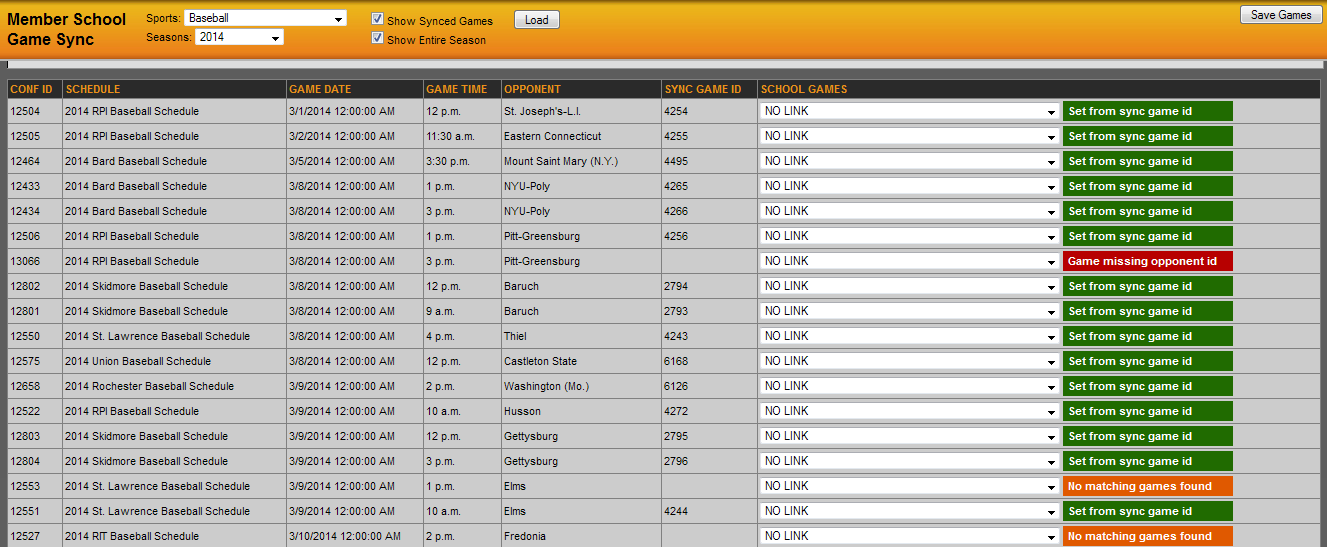
Notice how most games say 'No Link'. This occurs the first time a sport is loaded for that specific season as the system begins to run a service that matches up the ID's. Hitting load a second time will load all the content that has been auto-matched by our software.
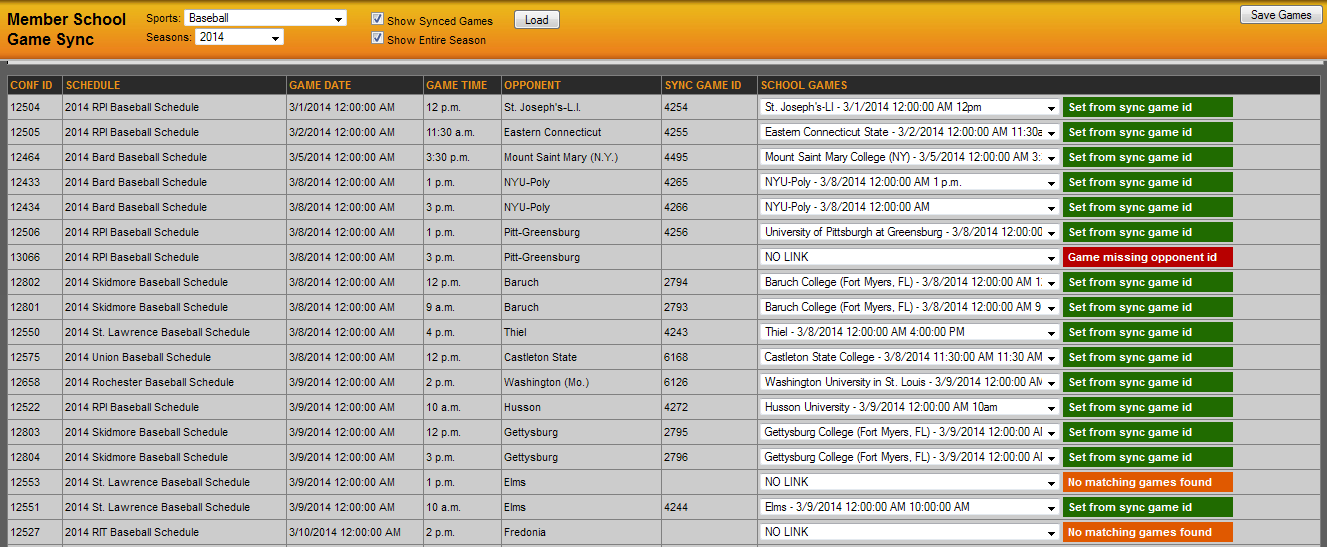
From left to right, you will see the Schedule, game date and time and opponent listed. This is the content that is from your conference website. In the dropdown menu towards the right, you will see the list of games from the member school's website and if the system could match one, it will show the matched game with the opponent, date and time. In you see a game that is not matched, you should click on the dropdown and search for the matching game.
In the example below, you will see a game where the time on the conference schedule, didn't match the time from the school site. When clicking on the dropdown, we were able to locate the matching game and selected it. When ready, hitting save will link this game so that when the school (RPI) enters the score, it pushes through properly, or if they edit the game's date or time, it pushes through properly as well.
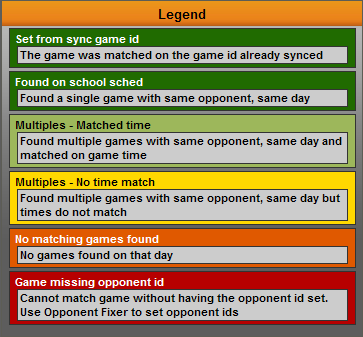
In the bottom right corner, you will notice an orange bar with Legend inside of it. When you hover over this, the Legend will appear with a description of the color that are located to the right of the school games drop down.
Was this article helpful?
That’s Great!
Thank you for your feedback
Sorry! We couldn't be helpful
Thank you for your feedback
Feedback sent
We appreciate your effort and will try to fix the article